The Best Android Mobile Benchmarks

Although there is strong evidence that higher benchmark scores do not always translate into real-world performance gains, the best benchmarks do serve a purpose.  They are not subjective and can expose differences in hardware performance. Unfortunately, there are over fifty different mobile benchmarks to choose from, and picking the best ones is not easy. There are several reasons for this. Some benchmarks have serious problems and do not produce meaningful results. Other benchmarks haven’t been updated in years and should be taken down. A few benchmarks are bankrolled by companies with a long history of cheating. In the end, my research showed there are 4 or 5 benchmarks that really stand out and deserve a “Best” rating. A few others are very good, but not quite as good as the those with a “Best” rating. I found quite a few benchmarks that are good for certain things, so I placed them in their own category. Lastly, I found more than a few apps that have serious flaws and shouldn’t be used. Here are rankings of mobile benchmarks that will help you determine which to use, and which to avoid. This article is focused on Android benchmarks, but quite a few of these are available for iOS as well.
Capture1

Best

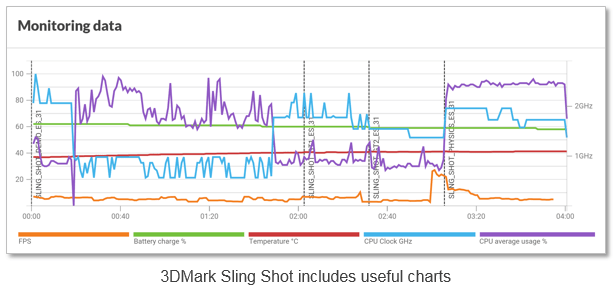
  • 3DMark (Sling Shot) One of the best GPU benchmarks. It incorporates volumetric lighting and particle illumination, as well as depth of field and bloom post-processing effects. Expect really low frame rates on the graphic tests. Although Sling Shot includes several good tests where physics including simulated worlds and particle systems are computed on the CPU, it isn’t the best benchmark for overall CPU performance. A useful graph is displayed after the test is complete, which plots the CPU frequency, temperature, frame rate for each of the tests. Scores vary depending on which of the modules you run. Even though the tests appear similar, scores from ES 3.1 mode should not be compared to scores from ES 3.0 mode. Requires Android 5.0 (or later).
  • GFXBench (formerly GL Benchmark) – This suite of 14 different tests is one of the best GPU benchmarks. Its “Car Chase” test was the first to test devices with hardware tessellation support. It also includes HDR tone mapping bloom, lens flares, particles, motion blur and more. Issue: Temperature and clock speed are not reported on devices like the Nexus 6.
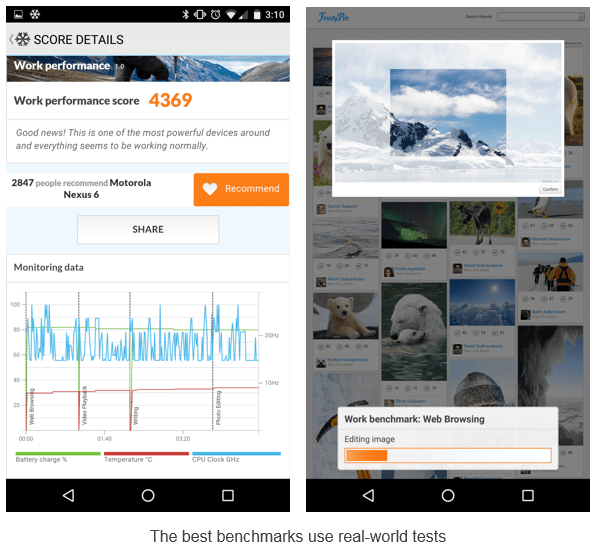
  • PCMark for Android – This benchmark measures the performance and battery life of an Android device browsing the web, editing photos, watching videos and working with documents. Real applications are used, so the results are supposed to reflect real-world performance. The “Work battery life” test measures the time required to drain the battery in a device from full charge to 20%. This benchmark is useful, but isn’t a true test of processor efficiency, because the end result has a lot to do with the capacity of the battery in the device. Still, it’s one of the best battery tests.
  • Vellamo – One of the best mobile web benchmarks. Although it’s known for its HTML5 and Javascript browser performance tests, the Browser Chapter also includes SunSpider and Google’s Octane benchmark, as well as page load, text reflo, scrolling and crypto tests. Vellamo also has a good collection of multi-core benchmarks (Multicore chapter) which include Linpack, Sysbench and Threadbench. Lastly, Vellamo’s Metal chapter includes the Dhrystone and Linpack benchmarks, as well as storage and RAM memory tests. It should be mentioned that the person who created and maintains Vellamo is an employee of Qualcomm, although I’ve never seen any evidence Vellamo’s browser tests favor Snapdragon processors.
 Capture3

Very Good

  • Androbench – A good way to measure the storage performance on an Android device. Measures sequential reads/writes and random reads/writes.
  • Geekbench 4 – One of the better single-core CPU benchmarks. Geekbench also tests memory and multi-core performance. Geekbench 4 also includes new GPU compute tests, although it’s too soon to say how good these tests are. Requires Android 5.0 or later.
  • JetStream A relatively new JavaScript benchmark that is similar to Vellamo and PCMark’s Web Browsing test. Effectively replaces SunSpider and Octane because it includes SunSpider 1. 0.2 and Octane 2. Its makers claim it is better because “each benchmark measures a distinct workload, and no single optimization technique is sufficient to speed up all benchmarks.” Latency tests confirm that a web application can start quickly, ramp up to peak performance, and run smoothly without interruptions. Throughput tests measure the sustained peak performance of a web application. It’s supposed to be less easy to game because aggressive optimizations for one benchmark could make another benchmark slower.

Useful in Some Cases

  • 4GMark – A speed and quality of service benchmark for 2G/3G/4G cellular and Wi-Fi networks. After testing, you can compare your results against other users in your country, area, or the same device.
  • AndEBench-Pro 2015 – A suite of tests measuring CPU, GPU, memory and storage performance. It also gauges XML parsing, GUI rendering, image manipulation, data compression and cryptography tasks embedded in actual workloads. This benchmark is a product of EEMBC, which is led by Intel. This apps is based on AndEBench, which gets only 3 stars in Google Play. It was last updated in 2015 for Lollipop and is overdue for an update.
  • AnTuTu 6.0 – Better as a CPU test than a GPU test. AnTuTu is also not a good indicator of performance changes over time because its scores sometimes change dramatically as new versions are released. For example, bloggers benchmarking the Snapdragon 820 with AnTuTu 6.0 saw scores over 130,000. At the same event, on the same hardware, AnTuTu 5.7 reported scores around 70,000. That’s almost a 2x increase, which makes this benchmark very misleading. Although some of the best tech bloggers (e.g. AnandTech, Engadget and Ars Technica) no longer use AnTuTu, it’s still one the most popular Android benchmarks and the one that handset manufacturers like Samsung value the most. It also has more users than any other benchmark. For these reasons, I’m not moving it to the ‘Not Recommended’ section of this article – even though it probably deserves to be there.
  • Basemark ES 3.1 – Measures the OpenGL ES 3.1 graphics performance of your device. Also provides four results: Lighting, Compute, Instancing and Post-Processing. It’s part of their Basemark GPU Mobile test suite , which has a Pro version that reports FPS and other stats. I considered moving this to the “Good” section of this article, but after reading its mixed reviews and seeing that it doesn’t run on most mobile devices, I’m leaving it here for now.
  • DiscoMark – This little-known benchmark measures the launch-times of applications that you select. On the plus side, this test reflects the real-world performance of your phone. On the negative side, comparisons are meaningless, unless the same apps are selected.
  • Basemark GUI Free – Performs vertex streaming and blending performance measurements. Its vertex test is good, although the blend test is not great. It also hasn’t been updated since 2014.
  • Basemark X – A decent cross-platform graphics benchmark based on the Unity 4.2 game engine. This used to be one of the more demanding graphic benchmarks, but it hasn’t been updated since 2014, so it’s showing signs of age. Its off-screen test is also not completely resolution independent.
  • CF-Bench – A CPU and memory benchmark designed for multi-core devices. Although it produces a “final” score, its creators say you should take those with a grain of salt. Hasn’t been updated since 2013.
  • CompuBench RS – A RenderScript benchmark that tests compute performance of Android mobile devices. Still being updated, but not very popular.
  • Dhrystone– An older synthetic computing benchmark program which provides an indication of CPU “integer” performance. This benchmark isn’t a good indicator of performance but is still used by some chip manufacturers as a load to determine peak power consumption. Dhystone 2.1 is part of Vellamo’s Metal Chapter.
  • Epic Citadel isn’t a traditional benchmark, but it does have a “benchmark mode,” which reports an average frame rate after a game loop runs. I feel this app is useful because its graphics are representative of the real world games.
  • GameBench – GameBench is one of the more popular FPS testing apps. However it must run for for 10-15 minutes in order to get a frame rate reading, and there is evidence the results are not always accurate. I wrote an article that compares GameBench with others apps that report frame rates. GameBench is “App 2” in these tests. Note: This app also has privacy issues. It sends your email address, test scores and other personal data to the cloud where paid users can access it.
  • Google Octane– A good test of JavaScript performance in browsers.  This test is part of JetStream and the Vellamo Browser Chapter, so most users won’t need to run it.
  • Kraken– Yet another Java script benchmark. Still used by Ars Technica and some other bloggers.
  • SPECint 2006 – This benchmark is used by chip manufacturers and OEMs to measure CPU performance. It contains 12 different benchmark tests that stress a system’s processor and memory subsystem. The reason this benchmark doesn’t appear in the above sections is because it’s not available in Google Play and costs $800.
  • TabletMark – An automated tool that evaluates system performance on a range of activities, which include Web browsing, email, photo, video sharing and playback. Also includes a day-in-a-life battery test which includes idle time. While this benchmark sounds interesting, it’s worth mentioning that this app has less than 1000 downloads and a 3.6 star rating.
  • Trepn Profiler – This app isn’t a benchmark, but it reports accurate power readings and displays the processor frequencies as an overlay on any app. This is a good way to see whether your processor is throttling under a heavy load. When a processor is overworked and gets too hot, its frequency is reduced, which causes a drop in performance. The only reason this app is not in the “good” category is because newer mobile processors (including the Snapdragon 808, 810, 820 and 821) have a PMIC that only reports power readings every 30 seconds and this can affect the accuracy of average power readings. [Disclosure: I was involved in the creation of this product]

Not Recommended

  • 3DMark (Ice Storm) – Not the best test of advanced GPU performance. 3DMark Sling Shot has effectively replaced this test.
  • AnTuTu 4.0 – This app has heavy vertex shader complexity that is unlike real-world games. It also has no consideration for tiled rendering architectures.
  • AnTuTu 5.0 – This app’s 2D tests are not representative of the real-world games. This version was replaced by AnTuTu 6.0, which is better.
  • Basemark OS II – A system-level benchmark designed to measuring overall performance. In addition to its overall score, four different areas are also evaluated including system, memory, graphics, and web browsing. Not recommended because the rankings on this Powerboard web site aren’t credible and their free version is missing several features promoted on their product page. Battery Test and External Memory Tests are available in their Full version, but I can’t find a camera test anywhere. Also, this benchmark hasn’t been updated since 2014 and it is one of the lower-ranked popular benchmarks on Google Play (3.9 stars).
  • BenchmarkPi – One of several benchmarks that measures performance by calculating Pi. This benchmark isn’t recommended because it only tests the CPU and is no longer used by most bloggers. It also hasn’t been updated since 2009.
  • BenchmarkXPRT – A collection of different benchmarks. You won’t find the word “Intel” on the BenchmarkXPRT website, but if you check the small print on some Intel websites you’ll find they admit “Intel is a sponsor and member of the BenchmarkXPRT Development Community, and was the major developer of the XPRT family of benchmarks.” Intel also says “Software and workloads used in performance tests may have been optimized for performance only on Intel microprocessors.” Bottom line: Intel made these benchmarks to make Intel processors look good and other processors look bad. This benchmark should not be used.
  • BrowserMark – A cross-platform browser benchmark with issues that make cross-platform comparisons questionable.
  • CaffeineMark – A series of online tests that measure the speed of Java programs. CaffeineMark scores roughly correlate with the number of Java instructions executed per second, and are not supposed to depend on the amount of memory available or the speed of the Internet connection. Not recommended, because this test was created in 1997 for PCs and their Android app hasn’t been updated since 2011. Much better JavaScript benchmarks now exist.
  • CompuBench CL Mobile – Tests the compute performance of Android mobile devices supporting OpenCL. Tests include face detection, particle simulation, fractal rendering, ambient occlusion, raycast, gaussian blur and histogram normalization. Crashes on many devices. As a result it has a poor rating and cannot be installed on most devices.
  • Google V8 – Another browser benchmark focused on JavaScript performance. Was effectively replaced by Google Octane because it adds five tests on top of the ones already in V8.
  • Linpack – Measures the floating point performance of the CPU. Linpack is part of the Vellamo’s Multicore and Metal tests, so it’s not really needed. It’s also no longer used by most bloggers who benchmark and hasn’t been updated since 2011.
  • MobileXPRT – You won’t find the word “Intel” on the BenchmarkXPRT website, but if you check the small print on some Intel websites you’ll find they admit “Intel is a sponsor and member of the BenchmarkXPRT Development Community, and was the major developer of the XPRT family of benchmarks.” Intel also says “Software and workloads used in performance tests may have been optimized for performance only on Intel microprocessors.” Bottom line: Intel made these benchmarks to make Intel processors look good and other processors look bad. MobileXPRT should not be used.
  • Nenamark 1 – An OpenGL ES 2.0 graphic benchmark that is meaningless, because all modern devices hit its 60fps framerate limit. Hasn’t been updated since 2011.
  • Nenamark 2 – An OpenGL ES 2.0 graphic benchmark that is supposed to have more advanced effects and higher resolution graphics than NenaMark1. Hasn’t been updated since 2012.
  • Nenamark 3 – Another OpenGL ES benchmark that is supposed to continuously grow more complex until the system cannot handle it any more. However, it doesn’t allow you to change the resolution, so a phone with a very high-resolution screen is likely to perform worse than a budget phone with a low-resolution screen. This is also why it favors iPhone over Android flagships like the Nexus 6P.
  • Passmark – Tests CPU, storage, 2D graphics, 3D graphics, storage and memory performance. Hasn’t been updated since 2013.
  • Pi – Calculates how long it takes to calculate Pi up to 10 million digits. Not a useful benchmark because it only measures one thing.
  • Quadrant Standard Edition – Mostly a CPU benchmark, although it also claims to test CPU, memory, I/O and graphics. Hasn’t been updated since 2012.
  • Smartbench – A multi-core-friendly benchmark that measures overall performance. Tests productivity and gaming. Last updated in 2012. Poorly rated on Google Play (3.8 stars).
  • SunSpider – The JavaScript benchmark SunSpider is no longer being updated. Its creators recommend JetStream. Even when it was still popular, the data that SunSpider used was so small that it was more of a cache test than a JavaScript benchmark.
  • WebXPRT– You won’t find the word “Intel” on the BenchmarkXPRT website, but if you check the small print on some Intel websites you’ll find they admit “Intel is a sponsor and member of the BenchmarkXPRT Development Community, and was the major developer of the XPRT family of benchmarks.” Intel also says “Software and workloads used in performance tests may have been optimized for performance only on Intel microprocessors.” Bottom line: Intel made these benchmarks to make Intel processors look good and others look bad. WebXPRT should not be used.

I hope you find this article to be of use. If you have any comments please enter them below.

– Rick

Copyright 2016 Rick Schwartz. All rights reserved. Linking to this article is encouraged. All of the comments in this blog are Rick’s alone, and do not reflect the views of his employer.

The Smart Home Has Finally Come of Age

1

Almost 15 years ago I attempted to convert our house into a smart home. Back then many smart devices were controlled using the X-10 protocol, which communicated over power lines. It was cool when it worked, but it was far from reliable. Fortunately the connected home has come a long way since then. Here’s why I believe the smart home is now ready for prime time:

Why Smart Devices Have Come of Age

  • Voice-activated – Smart controllers like Amazon’s Echo control thermostats, light bulbs and smart hubs using your voice. Voice-activated controllers are easy to use because they respond to natural language commands like “Alexa, turn off the family room light.”
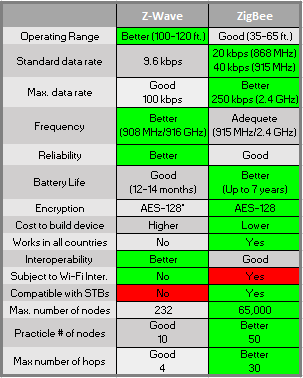
  • Better reliability – Many smart devices are now controlled using ZigBee or Z-Wave. These newer smart home protocols have many advantages over the earlier home automation protocols like X-10. First, they don’t communicate over power lines, so they are much more reliable. Products like light switches and outlets act as signal repeaters, so they extend the range of your network. Second, they communicate over a mesh network, so any smart device can talk to any other smart device. Finally, some of these new protocols don’t use the same frequencies as Wi-Fi products, so they are much less susceptible to wireless interference.
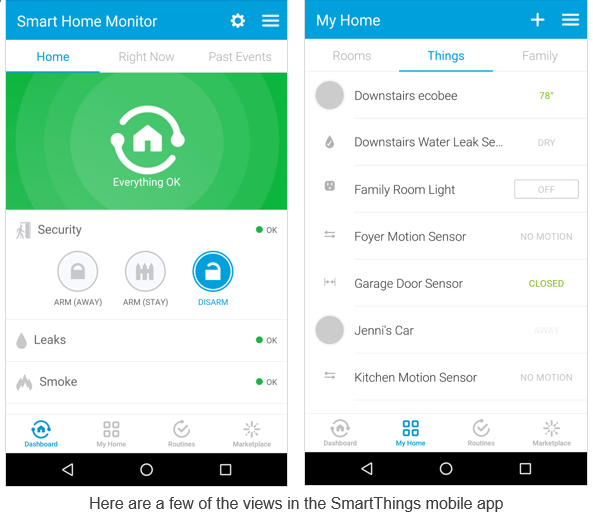
  • Interoperability – Smart hubs like Samsung’s Smart Things work with Wi-Fi, ZigBee, Z-Wave and cloud-connected products like Amazon’s Echo. In fact, over 1,000 different products work with SmartThings today, so you won’t hard a hard time finding compatible products. Although SmartThings is a Samsung product, it works with iPhone as well. In the future, the SmartThings hub is supposed to work with the Thread home automation protocol, which Google and others are using, as well as Bluetooth, which Apple’s HomeKit uses.

3.PNG

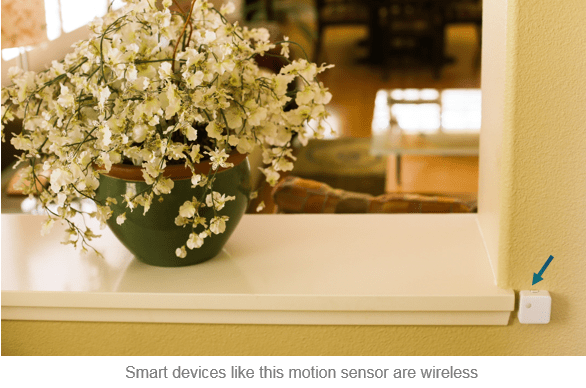
  • Easy to install – The first smart home devices were connected using wires. Now, many devices are wireless. To add a motion sensor, you just stick it to the wall using adhesive tape. If you decide to move it later, you can do so without leaving any holes in your wall. These smart devices are battery-powered, so they don’t need an AC adapter, or connection to wall power. They even report their battery level to the smart hub, so you’ll know when it is time to purchase a new battery. In case you are wondering, batteries last about a year.
  • No security keypads or loud alarms – Today’s smart home can be programmed to automatically arm itself after every family member has left. Only then will you be notified when there is motion. There’s no need for a loud alarm that annoy your neighbors. You’ll receive a text that tells you what triggered the alarm (e.g. smoke, fire, motion or a water leak). If you have cameras installed, you’ll see what caused the motion. When the first family member returns home, the alarm will be automatically turned off, without the need to enter a long security code. And the best part is, you get all of these services and more without a monthly fee.
  • Mass appeal – Smart home products are no longer just for nerds. Nest thermostats, Dropcam and Amazon’s Echo are all extremely popular. Over 100,000 Nest thermostats are sold every month. Over 3 million Amazon Echos have been sold to date. These companies have also done a good job explaining how these devices work with other smart home devices, so they have effectively primed the pump for other smart home products. Once Apple’s HomeKit catches on, and Google comes out with their smart hub, millions of additional consumers are likely to create their own smart homes.
  • Smart devices do more – Samsung’s multi-sensor can detect contact open and closed status, movement, vibration, and orientation (vertical or horizontal). Smart outlets measure energy usage and act as signal repeaters. Some smart thermostats also detect motion, so they can automatically turn off your air conditioning when you are away. Some wireless smart devices also report temperature, so they could detect a fire in an area of your home that does not have a smoke detector.
  • Better software and services – The first smart hubs only worked with software from a single company. Today’s smart hubs and controllers work with apps, plug-ins and services from a wide range of different developers. Apps are available that do a wide range of things. If you can’t find an app that does what you want, you can create your own, or modify existing apps. The best part is that you do not have to an experienced programmer to do this. Amazon Echo users can use a wide range of plug-ins called Skills and services including Pandora, Spotify, iHeartRadio TuneIn, Audible, Amazon Music and Prime Music.

4c

Things a Smart Home Can Do for You


There is almost no limit what is possible in today’s smart home. Here are just a few examples of the things you can do:

  • Have your air conditioner automatically turn up it’s thermostat so it doesn’t run after all of cars used by your family have left your neighborhood
  • Setup your Sonos to play the sound of a loud dog barking when there is motion and you’re not home
  • Have your Jawbone to automatically open your window blinds and disable your alarm when you get up in the morning
  • Recieve a text after your mail has arrived
  • Use your phone to start a “Good morning” mode that adjusts thermostat, turns on a coffee maker and starts your favorite music playlist, or a “Goodbye” mode, that opens your garage door, turns up the thermostat, turn off all of your lights and locks your doors
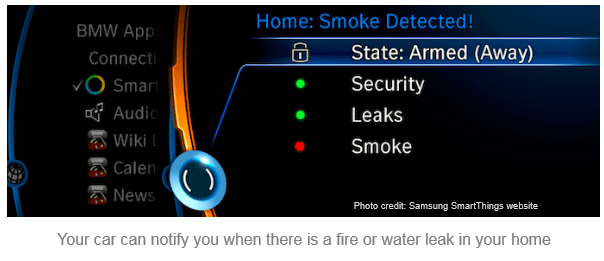
  • Get a notification on your BMW dashboard if there is an intruder, fire or water leak in your home
  • Use a sensor to monitor the moisture in your soil and only turn on sprinklers when needed
  • Use your iPhone or Android smartphone to control any smart device in your home. Have you ever left your home and realized that you forget to turn something off? You can now address issues like this using your phone – no matter where you are.
  • Make a voice call on an Ooma Telo using an Amazon Echo
  • Turn on a ceiling fan after the temperature rises above 78 degrees
  • Change the color of your lighting based on different events. For example:
    • If there’s a water leak, turn my lights blue
    • If there’s a smoke alarm, turn my lights red
    • If there’s a fire, turn on all of the lights in my home
  • Record 10 seconds of video prior to the start of an event, so you can see what triggered an alarm. For example, if someone were to kick in your front door, you’d see the door fly open and the face of the person as they entered, not just the back of their head

And last, but not least, a smart home will save you money. Nest Labs released a white paper last year, which showed a smart thermostat saves its owner 10-12% on heating and a 15% on cooling. That’s a savings of up to $145 a year. ecobee claims an average savings of 23%. If you live in Southern California you can get two $150 ecobee thermostats for free if you agree to raise your thermostat on peak usage days. You’ll save even more if you have your lights automatically turn off when you exit a room. I could go on, but you get the idea. If you can dream it, you can probably do it.

How to Get Started


2
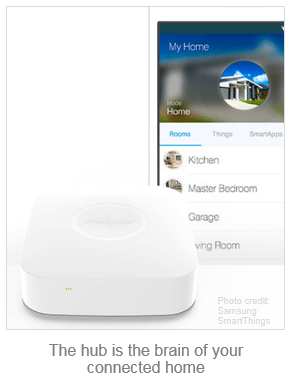
Start by buying a smart hub. The hub is the brain of your smart home, connecting you and your devices via apps on your phone, tablet or computer. Once you select a hub, you can start buying smart devices. I started with an Amazon Echo. Then I bought a smart hub and two motion controllers for $180. Discount coupons and sales are common. There are also money-saving bundles available that include a smart hub, motion sensor, two multipurpose sensors (that monitor whether doors, windows, or your garage are open or closed) and an outlet to control lights, or small appliances. Here are some tips how to make your smart home more reliable:

  • Locate your hub wisely – It’s tempting to put your smart hub next to your Wi-Fi router, but that’s not the best place for it. Locate it in a central location that is not too close to your router and other wireless devices.
  • Watch for interference – Because ZigBee devices share the same 2.4 GHz band as Wi-Fi products, they could have problems with interference. When possible, have your smartphone, laptop and media streamers to use the 5 GHz band to eliminate wireless interference. If you must use the 2.4 GHz band, use a mobile app like this one to change to a less congested Wi-Fi channel. Sonos products can also interfere with ZigBee devices. Z-Wave devices are more reliable because they use a less congested wireless band.
  • Create a device map – It’s a good idea to draw a simple map of your connected home and the estimate the distance of each device from the smart hub or the closest device with the same protocol.

      11.PNG

    • Pay attention to the distance between your smart hub and ZigBee devices, because their maximum range is 35 feet. Every time ZigBee or Z-Wave signals go through a wall, their range drops. Z-Wave has a maximum range of 100 feet however, if you have metal junction boxes and dense walls, the range can drop to only 17 feet. Try to arrange devices and repeaters to have line-of-sight communication with each other, or at most one wall (or floor) between them.
    • Color code Z-Wave and ZigBee devices differently on your map, because ZigBee devices can only communicate with other ZigBee devices and Z-Wave devices can only communicate with other Z-Wave devices.
    • Circle all devices that act as repeaters. Keep in mind that battery-powered devices cannot act as repeaters.
    • Techie tip: Rotating your smart hub can solve signal problems. Try to determine which direction your antennas radiate and position the hub so it doesn’t radiate away from your devices.
  • Use repeaters to extend your range – Z-Wave and ZigBee device utilize mesh networking, which allows signals to “hop” through other devices to reach the destination device. However, both have range restrictions (as discussed above). Add a repeater if some of your smart devices don’t respond reliably. Keep in mind that a ZigBee repeater won’t extend the range of a Z-Wave device.
  • Tune-up your network – As you add smart devices, the topology of your network changes. There are several things you can do to improve the communication between your smart devices and hub:

    • Z-Wave devices do not automatically look for new “parents.” Once a device picks a parent, it will hold on to it until it cannot talk to it any more, even if a different parent is added to the network that would be a better choice. To make sure your Z-Wave devices are routing optimally, look for a “Repair Z-Wave Network” command in the software for your hub.
    • You can force a ZigBee device to pair with a better parent by turning off your hub, and leaving it off for up to 10 minutes so the device loses communication with its former parent (the hub). After you turn back on the power to your hub, your ZigBee devices will find better parents (if they exist).

The Last Word

The smart home has come a long way. The best smart home hubs support multiple connected home protocols so you can choose from a wide range of devices. Interoperability between products is good and there is a wide range of products available including motion sensors, presence sensors, moisture sensors, door locks, electrical outlets, voice activated controllers, smoke detectors, smart light bulbs, garage door openers, vents, sprinklers, blinds, speakers, thermostats and much more. Smart devices communicate over a mesh network, which improves as you add more devices and connected to the cloud so you can monitor and control your smart home anywhere in the world. It’s time for you to think about automating your home. Start simple and add products over time. There are many good videos online that will help you get started. Have fun!

2.PNG

Copyright 2016 Rick Schwartz. All rights reserved. Linking to this article is encouraged. All of the comments in this blog are Rick’s alone, and do not reflect the views of his employer.
How to use less than 100MB of mobile data each month

I recently switched carriers from Verizon to Google’s Project Fi. Google only charges you for the data you use, so it is in your best interest to use as little as possible. I used to use 3GB or 4GB of data each month. Now I use less than 100MB of data every month. You read that right. I reduced my data usage by 40x. Read on to learn how to do it and still use your phone every time you need it.

  1. 1Turn off cellular data when you don’t need it– Some apps use cellular data when Wi-Fi is available. Almost all apps use data in the background when you are not using them. I found that I had apps that I never used that wasted large amounts of data. Over an entire month, this really adds up and eats into your monthly data plan. Even with cellular data off, you’ll still be able to make calls and send or receive texts over the cellular network.
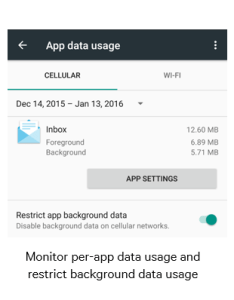
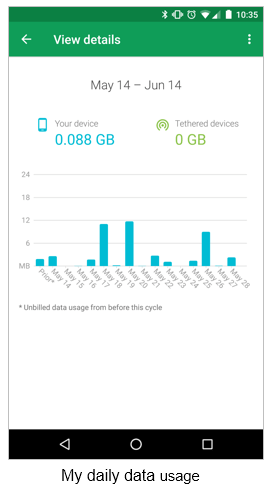
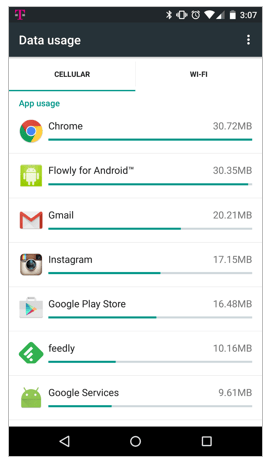
  2. Monitor your data usage and uninstall problem apps– It’s essential that you go to Settings and review your cellular data usage. Be aware which apps use the most amount of mobile data. Social media, news and weather apps are notorious for syncing often – even if you rarely use them. If you uninstall Facebook, Snapchat and popular news and weather apps, you’ll be surprised how much data and battery life you save. You can still access Facebook using your mobile browser whenever you want to. News and weather sites can be accessed via browser as well. You can even bookmark them so they appear on your home screen like an app. Try to only use apps like Instagram and web browsers over Wi-Fi, because they use lots of data.
  1. Restrict background data usage– It’s highly recommended that you go to Settings > Data usage and view the app background data for your apps. I’ve enabled ‘Restrict app background data’ on all apps and haven’t had any problems. When you do this, a warning will appear, but you can ignore it. I’ve been doing this for almost a year without any problems whatsoever. I was surprised to find that apps I never use consumed a lot of background data. There is a global setting to restrict background data, but I recommend you do this on a per app basis, so you can enable any apps that have a problem in the future.

Restrict2

  1. Only update apps on Wi-Fi – Make sure you go to Settings in the Play Store app and go to ‘Auto-update apps’ and set it to ‘Do no auto-update apps’ or to ‘Auto-update apps over Wi-Fi only.’ This will save you large amounts of data.
  1. Avoid streaming over mobile – Streaming audio or video uses much more data than text. Download your favorite songs and playlists so you can listen to them offline. Avoid streaming video from sites like YouTube or Netflix over mobile because this can consume extremely large amounts of data. Consider switching to a carrier like T-Mobile with their binge-onplan, which lets you stream endless amounts of music or video without eating into your data plan.
  1. Never use maps with cellular enabled – Google Maps consumes huge amounts of data when you use it for driving directions. Most people don’t know that you can use turn-by-turn driving directions without using any mobile data if you load your directions while you are connected to Wi-Fi. If it ever says “Lost data connection” turn on cellular data for a few seconds and it will fix the problem. Then turn it back off. You can do this with the quick settings menu, so it doesn’t distract you from driving. Better yet, do this when you are waiting for a stop light to change. You can also cache maps before you leave or select a region on a map and have it work offline, but I find that to be unnecessary.
  1. Use Wi-Fi whenever it’s available– Almost everyone has Wi-Fi access at home and work so the only time you should turn on mobile data is when you are on-the-go and out of range of Wi-Fi. Free public hotspots are common and there are apps that will help you find them. Most broadband providers provide access to free Wi-Fi hotspots as well. Another tip is to go to your favorite sites before you leave home in the morning. I sync my email, news app, Twitter and RSS feed apps before I leave the house. This saves me over 100MB a day.

2

  1. Change your sync settings – You might want to try disabling ‘Auto-sync data’ by going to Settings > Accounts > Google and touching the 3 dots in the upper right. When you are connected to Wi-Fi, you can manually sync all of your Google accounts at any time by going to Settings > Accounts > Google and touching the 3 dots in the upper right and selecting ‘Sync now.’ You can also reduce data consumption by adjusting your Inbox to check for mail less often. I have mine set to ‘Never’ and I still receive notifications when new mail comes in. This change is made in the mail app and not on the Settings pages.
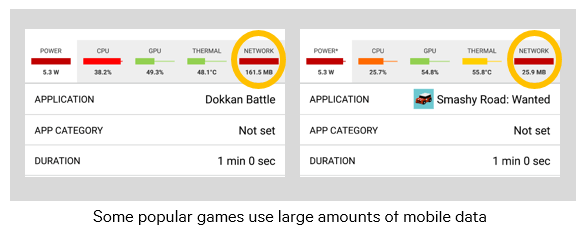
  1. Know your daily data budget – If you want to consume less than 1GB of data a month, you need to keep your average data usage under 33MB a day. If you consume 60MB in a single day, don’t worry. It won’t be a problem as long as consume less than 32MB on a few other days. I try to use an average of 3.33MB a day, so I stay under 100MB. It’s not hard to do because I often go days without using any mobile data. If you suspect an app is using too much data, download software like App Tune-up Kitand use it to select the app you want to test. It will run for one minute and measure the amount of mobile data used by the app. [Disclosure: I was on the team that created this app.] Most popular games use large amounts of mobile data. You should only play these apps when you are connected to Wi-Fi.
  1. Avoid apps with ads – Apps with ads consume more mobile data than apps without ads. If the apps you use have ad-free versions available, purchase them. Spending a few bucks will save you money in the long run.

data with title 2

  1. Use other people’s data – If you have a friend or family member with unlimited data, ask if you can tether and share their data. If you’re phone doesn’t support this feature free of charge, there are apps in Google Play like FoxFi that do this very well. Make sure they work with your phone and carrier before buying them. They generally have a trail version.

Using mobile data consumes over twice as much power as Wi-Fi data, so following the above steps won’t just save money, you’ll also extend your battery life. I ended up reducing my monthly phone bill from over $70 to about $23 a month. That’s a savings of around 60%.  Check to see if your carrier offers discounts if you change your plan to one that uses less data. If they don’t consider switching to a carrier who does. The savings add up quickly. In five years, I’ll save $2400.

You don’t have to follow all of the above steps to save data. Even if you only try a few of these suggestions, you could cut your mobile data usage in half. The more steps you follow, the more you’ll save.

– Rick

Copyright 2016 Rick Schwartz. All rights reserved. Linking to this article is encouraged. All of the comments in this blog are mine alone, and do not necessarily reflect the views of my employer.

Follow me on Twitter @mostlytech1