Getting the Most Out of Your Samsung Galaxy S III – Part Two

Last update: January 26, 2012

30 Great Tips & Tricks for the Samsung Galaxy S III

In part one of this article, we talked about what you need to get started with your new phone. This week were going to go much deeper and discuss more than twenty more tips that every Samsung Galaxy S III user should know.

    1. Learn how to access Google Now – There is some confusion how to access Google Now on a Samsung Galaxy S III. You don’t swipe up like you do on other Android smartphones. To access Google Now, long press the Home button and touch ‘Google.’ Now you’ll need to set things up by clicking ‘Next’ until you see ‘Yes, I’m in.’ Then choose which email account you want to use. Now you should start receiving cards with useful information on them. Say ‘Google’ to ask you phone questions without touching the screen.

    2. Try the new live camera filters – Android 4.1 has some cool new Instagram-style live filters that work on photos or video. To enable these, go to the Camera app and touch the magic wand icon. You’ll be able to choose from presets including warm vintage, cold vintage, black and white, sepia, solarize and many more.

    3. Edit video on-the-fly without editing software – Android 4.1 also lets you make your own movie by simply pressing the pause button in the Camera app and then starting to record again. When you’re finished press the stop button and you can watch your edited shots in sequence. This is simple, but really useful addition.

    4. See how widgets automatically resize – As you drop widgets onto the Android 4.1 home screens, everything else automatically moves to make room. When a widget is too big it, it resizes itself.

    5. Quickly speed up bogged down apps – I love the Zite app, but after you use it for a while it gets slower and slower until you can hardly scroll the page. This problem is easy to fix however. First, long press the Home button and touch ‘Remove all.’ Then, touch ‘Task manager’ and ‘Clear memory.’ Finally, hit the Back button and go back to the problem app. You’ll find the problem is gone.

    6. Capturing a screen – To capture anything on the screen press the home button and the power button together for 2 seconds OR use your palm to swipe from right to left. If you’ve done it correctly, you should hear a copy machine sound and see the screen flash white. Video instructions.

    7. Turn off 4G to increase your battery life – If you’re in an area without 4G LTE reception there is no reason to have your phone continually scanning for a 4G signal. This can take a toll of your battery life. Unfortunately carriers like Verizon do not let you disable 4G from the Settings pages. Fortunately there is a solution to this problem although it’s not as easy as it should be.

    1. Download the ‘Phone info‘ app from Google Play.
    2. Click on ‘Device info’
    3. Scroll down till you see ‘LTE/CDMA/EvDo’
    4. Touch ‘LTE/CDMA/EvDo’ and choose ‘GSM/CDMA auto (PRL)’

    You should be now be connected to Verizon's 3G network. Because the phone is no longer constantly searching for a 4G signal, this will conserve battery life.

    Here are some more great tips to preserve battery life on the Samsung Galaxy S III.

    8. Mute your phone by turning it over – Go to Motion and ‘Turn over to mute/pause’ to on. Now turning your phone over so it’s screen is down automatically mutes incoming call ringtones and alerts sounds. This feature also works with music and videos when you use the stock Samsung players.

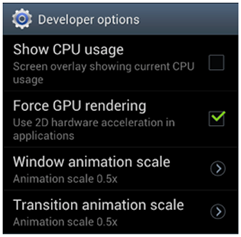
    9. Make your graphics smoother – Normally your CPU handles rendering of 2D graphics. By going to Settings > Developer options and making sure ‘Force GPU rendering’ is checked, you can free up CPU clock cycles so your graphics are rendered faster and smoother. In the unlikely event that you encounter an app which doesn’t support this, you’ll want to disable this setting before running that app.

    10. Pick your favorite contacts – To do this launch the Phone app and touch ‘Contacts,’ then mark your best friends and family members with a star to identify them as Favorites. You’ll find the star in the upper right-hand corner of the screen after you select a contact. Favorites are displayed first in the Phone app so you can quickly call or message them.

    11. Toggle screen rotation – By now you’ve probably figured out you can enable and disable screen rotation from the Notification bar which is displayed when you swipe down from the top of the screen. I recommend that you disable this when you’re not viewing photos or video.

    12. Enable Driving mode – Another useful Notifications bar option is Driving mode. When this is enabled, all incoming caller ID and text messages will be read to you.
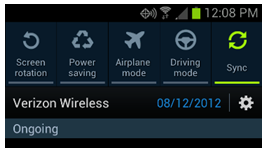
    Driving mode and Sync disable are useful settings


    13. Disable sync when you’re not working – You can save battery life by disabling account synchronization when you don’t need it. This is done by scrolling to the right and touching ‘Sync’ in the Notification bar.

    14. Display a world clock for notifications – Touch the time in the Notification area to display a world clock. Touch ‘Add city’ to display different zones around the world.

    15. Access your phone, mail, texts or camera from the lock screen – You can simply quickly swipe up from any of the four icons on the Lock screen to immediately launch the associated app. This is a real time saver.

    Notice Instagram has been added to the Lock screen


    16. Access any app from the Lock screen – You can replace any of the four icons on the lock screen. To do this, go to ‘Settings’ > ‘Security’ > ‘Lock screen options’ and make sure Shortcuts is on. Then touch the word ‘Shortcuts’ and four icons will appear. Touch the icon you wish to replace and choose a new app. The access the new app when your phone is locked, quickly swipe up to launch it.

    17. Quickly switch between all running apps – Press and hold the Home button to see all of the running apps. Touch the screenshot for any app to switch to it.
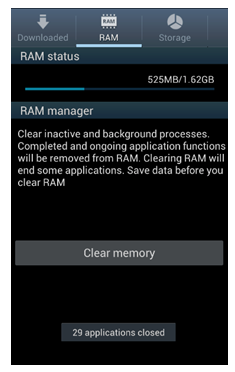
    It’s easy to free up lots of memory


    18. Free up memory to improve performance – To free up memory and make your phone run faster, press and hold the Home button and touch ‘Task manager.’ Then touch ‘RAM’ near the top of the screen and ‘Clear memory.’

    19. Close all running apps – To close all apps that are running in the background, press and hold the Home button and touch ‘Remove all.’

    20. Zoom in or out using hardware buttons– You can use the volume and volume down buttons on the left to zoom in or out which in the Camera app.

    21. Connect to your corporate mail – To access your work email click on the ‘Email’ app on the home screen shown to the right. Then click on the ‘Corporate’ icon and enter your name and password. If it doesn’t connect with you exchange server the first time, check your user name and try again. To save battery life, change from ‘Push’ to a time interval like 30 minutes or Manual for Off-Peak.

    22. Access all of your email from a single app– To add all of your different e-mail accounts (e.g. Gmail, Yahoo mail, Outlook mail, etc.) touch the icon for the red Email app and go to Settings. Then touch the ‘+’ sign and choose which account to setup.

    You can use any song as your ringtone


    23. Getting the pan image trick to work – The trick to getting the pan to browse feature to work (after you’ve enabled it under Motion settings) is to hold one of your fingers on the screen when you are zoomed in on an image. Then when you move the phone in wide sweeping motions from left to right and back you should see different parts of the photo.

    24. Use your favorite song as a ringtone – You can use any song as a ringtone for all calls, calls from an individual person, or as an alarm. Launch the stock ‘Music Player’ app and touch and hold on the song you wish to use. Then touch ‘Set as’ and choose from the available options.

    25. Upgrade your browser – The stock Browser is fine, but you should download and install Chrome and use it instead. It’s much faster and links with your computer and tablet.

    26. Buy a wireless charging doc – Most people don’t know it, but the Galaxy S III supports wireless charging. To take advantage of this feature, you’ll need to purchase a special doc from Samsung. These docs should go on sale any day now.

    27. Prevent your phone from switching to Wi-Fi – You may want to consider turning off Wi-Fi when you’re in an area with great 4G data speeds, because it will make your phone faster. The reason for this is because your phone will always use Wi-Fi when it’s available — even if it’s much slower than 4G. Since the Galaxy S III automatically turns Wi-Fi back on when you do certain things, you’ll have to go to Settings/Wi-Fi and uncheck the first option which says “Notify Me – When launching high data usage applications…” Important: You should only do this is you have a 4GB data plan, or are sure you’re under your monthly allowance.

    28. Download some great new apps – If this is your first Android phone, you should download some of the best Android apps. Here is a good list of the fifty best.

    29. Fix your auto-brightness – Your phone has an auto-brightness setting, but it doesn’t work that well. You should download Lux Auto Brightness to fix this problem. Lux automatically adjusts the brightness of your display based on your environment. When you go into a dark room and unlock your screen, Lux will automatically lower the brightness of your display to make reading more enjoyable.

    To setup Lux you need to go through their setup wizard. I suggest you leave the factory default settings as is. After you do that, you’ll need to go back and launch the app again and touch ‘Press to enable Lux.’ Lux will adjust every time you unlock your screen. If you sometimes use your tablet in a totally dark room, I suggest you go to the settings page and set ‘Night Mode’ alpha to 10.

    30. Share your screen with other devices – It’s possible to share the screen on your Samsung Galaxy S III with Samsung phones, tablets or TVs. Learn how to do this here.

    Connect your phone to any Apple speaker dock

    Connect your phone to any Apple speaker dock

    31. Connect your phone to a speaker dock – Now you can buy a cable which connects your Samsung Galaxy S III to any Apple-compatible speaker dock.

    In addition to the above tips, here are five little-known features for Your Samsung Galaxy S III that you’ll be able to appreciate after you upgrade to Android 4.1. If you’re wondering why I left out S Beam, I’ve devoted a whole post to that feature alone. Check it out.

More Android 4.1 tips from Samsung.
– Rick

Copyright 2013 Rick Schwartz. All rights reserved. Linking to this article is encouraged.

Follow me on Twitter @mostlytech1


Getting the Most Out of Your Samsung Galaxy S III – Part One

Last update: December 15, 2012

This article has had over 10,000 views. Thanks for reading it.

Things To Do First

You’ll need to increase the brightness to make the S III’s screen look its best


This is the first in a three part series which will help you to get the most out of your new Samsung Galaxy S III. Let’s start with some simple things to make an already good phone — even better:

  1. Increase the screen’s brightness – Some reviewers have complained that the Galaxy S III is not as bright as other top smartphones. This is easy to fix. Go to Settings > Display > Brightness and turn ‘Automatic brightness’ off. Then, move the brightness slider to the right and press OK. The screen should now be much easier to read. I run my brightness at about 70% and battery life is still fine.
  2. Change the screen timeout – Another easy to fix annoyance is the time before the screen goes to sleep. Go to Settings > Display and change the ‘Screen timeout’ to 2 minutes. This will keep your screen awake much longer, without having much of an affect on battery life.
  3. Here is an example of a customized home screen

  4. Clean up your home screens – Every one uses their phone differently, that’s why important that you customize your home screens to meet your needs. Here are some suggestions for new Samsung users:

    a. Make shortcuts on your home screens for all of your favorite apps. To do this touch ‘Apps’ and then touch and hold an app and then drag it until it appears on the desired home screen.

    b. Create folders for different categories of apps (e.g. Games, Utilities, etc.) and move all of the related apps into those folders. If you’re not sure how to create folders, there are details below in the section called ‘Cleaning Up Your Homescreens.’

    c. Uninstall any unnecessary apps and widgets. To do this, simply touch and drag them into the trash can in the lower right-hand corner of the screen.

    d. Remove any extra home screen panels after you’ve created shortcut for all of your most-used apps. The SIII comes with seven home screen panels, but you can speed up the time it takes to get to your apps if you delete all blank home screen panels. To do this pinch the home screen with two of your fingers. Then drag any blank panels into the trash can. You can add them back later if you want to.

  5. Clean up your app locker
    a. Start by hiding all of the carrier-installed apps you don’t plan to use. To do this touch Apps and press the Settings button. Then touch ‘Hide applications.’ Touch the black box next to any app you want to hide. When you’re finished, press ‘Done’ in the upper right-hand corner of the screen.
    b. Next, uninstall all of the apps you don’t plan to use. Details below.
  6. Improve your on-screen typing – If you have any problems typing on the Samsung keyboard you may need to do one of these three things:

    a. Go to ‘Language and input’ and enter words into your ‘Personal dictionary.’
    b. Customize your predictive text settings (details at the bottom on this post)
    c. If you’re still not satisfied after the above two steps, download SwiftKey 3 keyboard and use it instead of the stock Samsung keyboard.

  7. Download the drivers for your phone – If your phone doesn’t mount after you plug it into the USB port on your computer, you may need to download drivers. You can find the USB drivers for the Verizon version of the Galaxy S III here. Check the Samsung website to find the drivers for other carrier’s phones.
  8. Expand your memory – If you don’t have an extra 16 or 32GB microSD card laying around, you should purchase one, and copy all of your media to it. You can double the storage in your Galaxy S III for less than $10. This will free up valuable space on your internal memory.
  9. Replace some of your Samsung apps with stock ones – Samsung replaces many of the stock Android apps. In some cases, the replacements are better than the originals. In other cases, they are not. Here are 20 stock apps which you may want to consider.
  10. Read the manual – There is some valuable information in the Samsung Galaxy S III User’s Guide. You can view it here.
  11. Learn how to use the special features which are exclusive to this phone – The “Guided Tours” app has videos which will teach you how to use special features like one touch sharing, pop up play and more. Most of these appear in the “Additional videos” section. Even more videos can be found by searching for “Galaxy SIII” on YouTube. These tips and tricks videos are also worth watching.

Where to Find More Great Tips?

You can find 30 more great tips and tricks for the Samsung Galaxy S III here. If case you’re wondering why I left out S Beam, I’ve devoted a whole post to that feature.

Cleaning Up Your Home Screens

How to create folders

You can no longer drag and drop and app on another to create a folder.

  1. To create a folder, click on the Menu button in the lower-left hand corner.
  2. Then touch ‘Create Folder’
  3. You should see a white folder appear on your homescreen.

Note: Make sure you only try to do this on a homescreen that has room for the folder to appear. Otherwise it won’t work.

How to uninstall unused apps like ‘Media Hub’

  1. Touch the Apps icon.
  2. Press the Menu button in the lower-left hand corner and touch ‘Uninstall’.
  3. Click on the red minus sign to delete an app.
  4. Confirm and press the Back button when you’re done uninstalling apps.

Note: You can only delete certain apps. If there is no minus sign, you cannot delete them.

This list view allows you to quickly find apps alphabetically


How to fill in the spaces after hiding apps

After you hide a lot of apps you’re going to see spaces where the old apps used to be. The easiest way to fix this is to follow these instructions:

  1. Touch the Settings button in the lower-left hand corner and touch ‘View Type’.
  2. Touch ‘Alphabetical grid’ or ‘Alphabetical list’ shown to the right.

How to customize predictive text
If you’re having problems with the keyboard inserting wrong words, you may want to disable or customize predictive text. To do this, follow these instructions:

  1. Go to Settings > Language and input > and click on the gears to the right of Samsung keyboard.
  2. Then touch the words ‘Predictive text’. next, scroll down and touch ‘My word list’ and press “+” to add non-standard words that you type often.
  3. Next, touch the trash can icon and delete any words from the list that appear to be gibberish.
  4. I found that changing the ‘Word completion point’ from 2 to 3 letters seemed to help as well.
  5. If you find ‘Word completion’ to be distracting, turn it off. If you leave it on, don’t fight it. Keep on typing even though it has picked a wrong word. Most of the time it will correct itself later.

Tips for those upgrading from a Samsung Galaxy Nexus

If you’re moving from an Android 4.0 phone like the Galaxy Nexus, there are some things you need to know to get the most out of your incredible new phone. Although the Galaxy SIII runs Android 4.0, there are some differences between Touchwiz and the stock Android 4.0 GUI. This isn’t intended to be a comprehensive list. I’m focusing on the features that I find to be the most useful.

Dedicated Buttons are Back

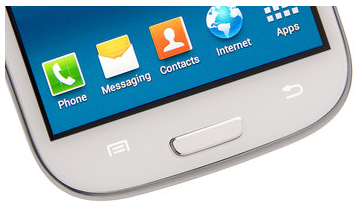
The first thing you’ll probably notice is that there are now three buttons below the massive 4.8” screen on the Galaxy S III.

  1. The left button is a menu button which lights up when you touch anywhere below the bottom of the screen. Instead of clicking on the three dots like you can see on the galaxy Nexus screenshot below, you’ll click on the S III’s dedicated menu button.
  2. The center button is a real physical home key which does three different things: Pressing it normally takes you to your Home screen. Pressing and holding it, displays a list of recent apps. Quickly pressing it twice launches Samsung’s S Voice, which is similar to Apple’s SIRI.
  3. The right button is the back button. This works the same as it did on stock Android 4.0 phones.

Where to Find MyApps

Instead of viewing your apps by touching the menu button in the upper right hand corner of the Google Play app, you’ll now touch the menu in the lower left-hand corner.

There are other differences between the Samsung Galaxy S III and the Samsung Galaxy Nexus. Checkout my next article to learn how to turn off 4G or capture your screen. You’ll find answers to those questions, along with twenty five more tips. If case you’re wondering why I left out S Beam, I’ve devoted an entire article to that alone. You won’t want to miss that one.

– Rick

Copyright 2012 Rick Schwartz. All rights reserved. Linking to this article is encouraged.


Follow me on Twitter @mostlytech1
 

What is the Best Smartphone You Can Buy Today?

One of these is the best smartphone available today. Which one is it? [Phone sizes adjusted so they appear uniform]


Since this article was first written, an updated version has been posted here. Check it out. A lot has changed.

Evaluating the Hardware

Who makes the world’s best smartphone? Most people would probably say the iPhone 4S, since it seems like everyone has one. But is it really the best? Let’s find out. I started by making a chart of the specs for all currently available smartphones from U.S. carriers.

The Top Five Finalists

Next, I narrowed down the list of candidates to the best five phones based on hardware specs. I was surprised that some of the most popular phones did not not make this list. I’ll discuss this more below, but first, the top five finalists based on hardware specs are:

HTC Evo 4G LTE

HTC One X

LG Nitro HD

Motorola ATRIX HD

Samsung Galaxy S III (U.S.)

Processor

1.5 GHz dual-core

1.5 GHz dual-core

1.5 GHz dual-core

1.5 GHz dual-core

1.5 GHz dual-core

RAM

1GB

1GB

1GB

1GB

2GB

Storage

16GB

16GB

20GB

16GB

16 or 32GB

Screen size

4.7”

4.7”

4.5”

4.5”

4.8”

Resolution

1280×720

1280×720

1280×720

1280×720

1280×720

Pixel density

312ppi

312 ppi

329 ppi

326 ppi

306 ppi

Rear cam

8MP

8MP

8MP

8MP

8MP

Front cam

1.3MP

1.3MP

1.3MP

1.3MP

1.9MP

Network

LTE

LTE

LTE

LTE

LTE

5GHz WiFi

No

No

No

No

Yes

Bluetooth

4.0

4.0

3.0

4.0

4.0

NFC

Yes

Yes

No

No

Yes

Thickness

8.9mm

8.9mm

10.4mm

8.4mm

7.6mm

Weight

134g

129g

127g

140g

133g

Battery

2000 mAh

1800 mAh

1830 mAh

1780 mAh

2100 mAh

OS

Android 4.0.3

Android 4.0.3

Android 2.3.5

Android 4.0.4

Android 4.0.4

Carrier

Sprint

AT&T

AT&T

AT&T

All

There are big differences between the above phones in terms of screen size and thickness [Chart: Phone Arena]

Creating the above list was not easy because there are phones like the Samsung Galaxy Note, HTC Rezound, Samsung Galaxy Nexus, HTC One S and Motorola Droid Razr Maxx which excel in some areas, but lag in others. However, in the end all of those were dropped because the above phones were better overall.

And the Winner is…

As you can see from the chart above, when it comes to specs, the Samsung Galaxy SIII beats or ties the best smartphones in all areas except pixel density and weight. Even in those areas, it’s no slouch. Most reviewers would probably give second place to the HTC One X, but the LG Nitro HD wins in both lightness and pixel density. The HTC Evo 4G LTE and Motorola ATRIX HD are also very good phones.

Based on specs alone, the Samsung Galaxy SIII is the best smartphone available today

Smartphones That Didn’t Make the Cut

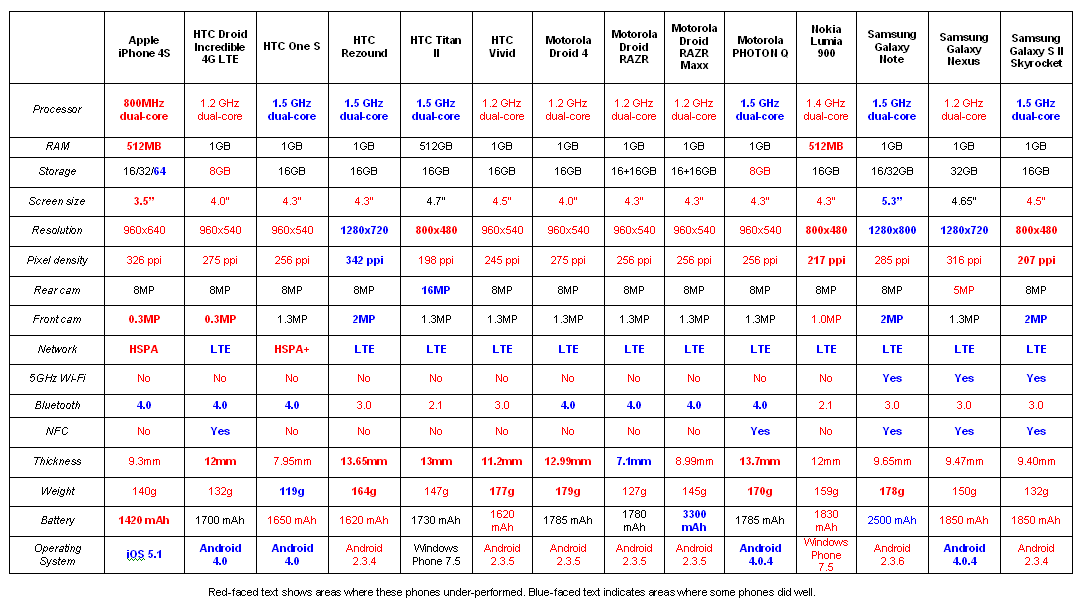
There is a fairly long list of smartphones which are good, but don’t deserve to be on the “best” list because they are flawed in one or more areas. You can view these in the chart below.

Click on the chart below to make it larger and more readable.

Red-faced text shows areas where these phones under-performed. Blue-faced text indicates areas where some phones did well.

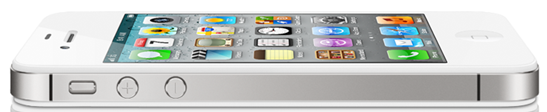
Although iPhone 4S sales continue to be strong, it no longer competes when it comes to most specs.


Why the iPhone 4S is No Longer One of the Best

Some of you are probably wondering why the iPhone 4S is no longer listed in the chart of best smartphones. The answer is easy; The iPhone 4S hasn’t been competitive for a long time when it comes to hardware specs. In fact the iPhone 4S no longer beats the best Android phones in any of the benchmarks or specifications listed in this article. If you’re a hard-core Apple fan, you’ll probably buy an iPhone 4S anyway — just don’t say you weren’t warned. Two years is a long time to own an under-performing 3G phone that doesn’t support 4G LTE. I’m not saying the iPhone is a bad phone — it’s not, but I was surprised to find that Android phones now outperform it in almost every way. For example:

  • The best Android phones are capable of data speeds which are up to 30x faster than iPhone 4S
  • The best Android phone has 4 times the memory than the iPhone 4S (Galaxy S3 2048MB vs. 512MB)
  • The best Android phones have processors which run almost twice the speed of the iPhone 4S (iPhone runs at 800MHz, all of the best Android phones run at 1.5GHz)
  • Several Android phones have quad-core processors, while the iPhone 4S only has a dual-core processor. I didn’t include those in the above chart, because they’re not available in the U.S. yet.
  • The best Android phones have browser performance that is 96% faster than the iPhone 4S (Galaxy S III Intl. BrowserMark benchmark scores)
  • The best Android phone has a screen which is over 50% larger than the iPhone 4S (Galaxy Note 5.3” vs. 3.5”)
  • The best Android phone has a screen which has 66% more pixels than the iPhone 4S (Galaxy Note 1,024,000 vs. 614,000)
  • The best Android phones have 41% faster GPU performance than the iPhone 4S (Galaxy S III GLBenchmark 2.1 – Egypt Offscreen 720)
  • At least 3 Android phones have greater pixel densities than the iPhone 4S (HTC Rezound 342 ppi vs. 326 ppi)
  • The best Windows phone has a rear camera with twice the resolution of the iPhone 4S (HTC Titan II has 16MP vs. 8MP on iPhone 4S)
  • Almost every Android phone has a better front camera than the iPhone 4S (Galaxy Note has 2.0MP vs. 0.3MP on iPhone 4S)
  • The best Android phone is 24% thinner than the iPhone 4S (Droid RAZR 7.1mm vs 9.3mm). At least 8 other Android phones are thinner than iPhone 4S.
  • The best Android phone is 15% lighter than the iPhone 4S. This is surprising because the best Android phones are much larger than iPhone. (HTC One S 119g vs. 140g)
  • Many Android phones have microSD slots, so consumers can easily and cheaply exceed the 64GB internal memory of most expensive iPhone 4S.
  • The best Android phones support NFC for easy purchasing and LTE for lightning-fast data speeds up to 30x faster than iPhone 4S. The iPhone 4S has none of this.
  • The best Android phone has a battery with more than twice the power of the iPhone 4S (Droid RAZR Maxx 3300mAh vs. 1420 mAh). This translates to over 21 hours talk time versus 14 hours talk time).
  • The best Android phones have Javascript performance that is 37% better than the iPhone 4S (Galaxy S III SunSpider Javascript benchmark scores)
  •  
    There is hope for Apple however. An iPhone 5 is rumored to be coming this fall. After it is released, I’ll update this chart and see how it compares to the other smartphones available at that time.

    The One Benchmark the iPhone 4S Excels At

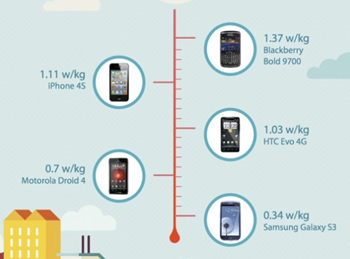
    It is surprising that the world’s most popular phone gets beat in every single spec listed above. This didn’t used to be the case. It used to be the other way around with iPhone dominating smartphone specs. There is still one thing that the iPhone 4S can beat Android phones at: cellphone radiation. The iPhone 4S has over 300% more radiation than the Samsung Galaxy SIII. That’s very surprising because the Samsung Galaxy SIII has more radios and is capable of much higher data speeds than the iPhone 4S. If you own an iPhone 4S, you might want to get a Bluetooth earpiece if you don’t have one already.

    The iPhone 4S has over 300% more radiation than the Samsung Galaxy SIII

    If you think I missed a phone that should be considered here, please let me know.

    – Rick

    P.S. Some of you are probably thinking this article relates to only hardware — not software. You’re right. Read this to see how Android compares to the newest version of iOS.

    Copyright 2012 Rick Schwartz. All rights reserved. Linking to this article is encouraged.

    Follow me on Twitter @mostlytech1

    Ten Reasons You Should Dump AT&T Broadband

    Last update: April 22, 2014

    This article has had over 100,000 views! Thanks for reading it.

    Over ninety percent of AT&T’s 11.3 million U-verse TV subscribers also pay for AT&T’s high-speed Internet services. While the U-Verse TV service is very good, their DSL service is bad. Read on to find out why.

    Ten Reasons You Should Dump Your AT&T Broadband Service

    1. You’ll Save Money for at Least a Year

    Broadband speeds vary, but there is a good chance you’ll save money for a least a year when you switch broadband providers. That’s because you can take advantage of special introductory offers. By switching from AT&T’s Elite DSL to Time Warner’s Standard Internet, we are saving $10 a month. But that’s just the first of many reasons to switch.

    Netflix ranks AT&T DSL speeds next to last place

    Netflix ranks AT&T DSL speeds next to last place

    2. DSL Speeds Are Slower than Cable

    We paid AT&T extra for 6Mbps, but rarely saw speeds that high.


    Cable modem download speeds are typically two times faster than DSL.That’s because DSL providers like AT&T cap speeds at 3Mbps. To get faster data rates, we decided to pay extra for AT&T’s 6Mbps Elite plan, but Speedtest tells us AT&T’s is slower than 75% U.S. broadband providers. They give AT&T a “D” grade during peak usage hours. Our data speeds weren’t always that low, they sometimes peaked around 5-6Mbps, but the data rate jumped around so much, the average was often lower. A recent government study found that AT&T only delivers 87% of the speed they advertise, while Cablevision, Comcast, Mediacom, Verizon and ViaSat all deliver speeds that are greater than advertised. Netflix also rates ISPs and unsurprisingly, AT&T DSL ranks near the bottom of their ratings shown above. U-verse also underperformed cable-based broadband from Time Warner and others..

    A recent government study found that AT&T only delivers 87% of the speed they advertise

    A recent government study found that AT&T only delivers 87% of the speed they advertise

    3. AT&T Seems Unable to Provide Consistent Data Speeds

    DSL speeds should be more constant than cable speeds, but we found the opposite to be true. In the beginning, AT&T delivered speeds close to 6Mbps most of the time, but over the past four years we’ve seen our average speed drop dramatically. As you can see from the chart on the right, we’re not getting near the amount of data we’re paying for. Worse yet, AT&T’s data speeds frequently drop to almost zero.

    Notice how our download speeds used to vary from zero to 3 Mbps

    We wanted to believe the problems we were seeing were caused by a defective piece of equipment, but we’ve had techs from AT&T in our house three different times. The AT&T techs replaced our home gateway, DVR, set top boxes, connectors, splitters and other hardware, but none of the changes fixed our problems.

    The Wall Street Journal recently confirmed my assertion that AT&T delivers Internet speeds that are worse than advertised. In fact, they along with Verizon, are the worst offenders in this area.

    4. AT&T’s Customer Support is Horrendous

    AT&T has the worst phone support I’ve ever experienced. They hide the customer support phone number on their site and then make you jump through hoops to get it. The site asks: Which of these four customer types are you? What is your Zip code? What type of support do you need? Then you finally see a ‘Call Us’ button. Now you enter AT&T phone tree hell. “I see you’re calling from 858-731-5252,” says the computer voice. “Is this the phone number where the problem is occurring?” “No,” I say. “Please say the 10 digital account number on your bill?” I say “I don’t know it.” “What type of service do you have? says the computer voice.” I answer.

    Be prepared to jump through hoops on their website before you’re given a customer support phone number

    I spare you the rest of the poorly written script. Often you’re presented with options that don’t apply with the problems you’re having and there is no way to go back — without hanging up and calling back again. I’ve had AT&T’s customer support line hang up on me before as well. The bottom line is that it can easily take 15 to 20 minutes before you’re able to talk to someone. Some of the AT&T Tier 1 techs are clueless. Be prepared to be asked to power cycle your hardware — even though you tell them you already did this before you called. Several times their network has been so bad they weren’t able to even analyze my hardware. In the end they always end up rolling a truck anyway because there is rarely anything they can fix over the phone.

    5. AT&T Has One of the Lowest Data Caps & Throttles Those Who Exceed It

    If you stream a lot of video, you are very likely to have your data speeds limited by AT&T. Most cable companies have limits of around 250GB, which isn’t that easy to reach. AT&T throttles users after 150GB a month. Although that seems like a lot of data, it’s not. If you stream movies or TV shows, or have kids who love YouTube, your family could consume more than this amount of data. Verizon doesn’t impose any type of cap on its FiOS and DSL lines. Time Warner has no specific limits, but can respond to excessive usage.

    6. AT&T’s Network Has More Latency Than Others

    We live in a new home that is hundreds of feet from the central office, so the quality of our broadband connection should be great, but we see horrible latency often. Occasionally these delays make it seem like we have to wait 15 to 30 seconds before web pages update. I used a site called Pingtest.net to prove the quality of the AT&T network in my area is poor.

    Pingtest gives AT&T a “D” grade for line quality

    The ping measurement tells you how long it takes a “packet” of data to travel from your computer to a server on the Internet and back. Whenever you experience delayed responses in Internet applications this is due to a higher than desired ping. A ping below 100 ms is expected from any decent broadband connection. You’ll notice I sometimes see delays as high as 150ms. That’s why AT&T gets a “D” grade here as well. Again, these results vary. Sometimes I see faster ping times, but this result shows how serious AT&T’s problems can be.

    7. AT&T Doesn’t Allow You to Purchase Your Own Equipment

    AT&T provides their subscribers with a home gateway or cable modem. As far as I can tell they do not allow consumers to select their own hardware from a list and use it with AT&T services like Time Warner and other service providers do.

    We decided to purchase our own cable modem

    This policy limits your options. Time Warner supports cable modems from Arris, Motorola, Netgear, SA, SMC, Thomson, Ubee and ZyXel. We decided to purchase our own DOCSIS 3.0-ready cable modem from Motorola after reading a large number of reviews on Amazon. This prevented us from paying a monthly rental charge, and will give us access to much faster speeds if we decide to upgrade our service plan in the future.

    8. You Don’t Need DSL to Keep U-Verse TV

    For the past two years we’ve wanted to cancel our AT&T DSL, but were told by their phone support reps that we needed to keep our DSL in order to get AT&T U-Verse. It turns out this is completely untrue. I wish we would have figured this out earlier. It would have saved us much frustration.

    9. AT&T Hardware Doesn’t Support Advanced Wireless Technologies

    If you’re a U-verse customer, you must use AT&T’s home gateway. The 2-Wire gateway that we were provided with has a built-in wireless router that doesn’t reach some of the rooms in our house. It also doesn’t support provide 5GHz 802.11 wireless support which is supported by our iPads and Samsung smartphones. This allows us to use a network that is much less congested than the normal 2.4GHz network all of our neighbors use. More info. The AT&T home gateway also doesn’t support advanced wireless features like 802.11n or wireless bonding (which increases data speeds).

    After switching we saw our speeds go up dramatically

    After switching we saw our speeds go up dramatically

    10. The AT&T U-Verse Home Gateway Limits the Quality of Third-party VOIP-based Phone Systems

    In order to get the best quality with VOIP-based phone systems like Ooma or Vonage, you must connect directly to a broadband modem or to a router that can prioritize voice over data. The home gateway which AT&T provides only allows this when you pay extra for AT&T’s VOIP service. Even without changing the settings on our router, our Ooma phone system already sounds better because it’s not starved for data all of the time.

    Was It Worth Switching?

    It’s been well over a year since we cut the AT&T DSL cord. Was it worth it? YES! Switching was fast and easy and saved us $120 in the first year.

    After switching to cable modem, we saw our speeds go way up and all of our problems go away. Here are some more details:

  • Our download speeds increased more than 800% to over 16Mbps over Wi-Fi. Our download speeds over Ethernet are up to 27Mbps — even though we only pay for a Standard plan that is supposed to cap out at 15Mbps.
  • Our upload speeds now range from 1 to 3 Mbps.
  • Our latency decreased 80% from 150ms to 21ms.
  • Our data speeds are much more consistent and rarely jump around the way they used to.
  • We’ve seen a dramatic improvement in the quality of our OOMA VOIP telephone service.
  • Our cable service has been very reliable. We’ve experienced only a few hours of downtime over the past 18 months.
  • It’s Time For You to Switch

    You owe it to yourself to investigate the alternatives to AT&T in your area. There’s a good chance you’ll save money and end up with faster data speeds. In less than a week you can switch. Installation is often free, and only takes about an hour. There is no configuration you have to do on your end. Just connect the cable from the new modem to your wireless router, and you’ll be enjoying faster speeds in minutes. Of course your mileage may vary, you might want to check with others in your area to see what their speeds are before making a change. In our case, switching was a smart thing to do.

    – Rick

    Note: This article isn’t intended to be a plug for Time Warner Cable. They are used for comparison purposes, because they are the only cable provider in our area. Make sure you look into all options in your area – including fibre-based broadband solutions like Google Fiber and Verizon’s FiOS.

    Copyright 2013 Rick Schwartz. All rights reserved. Linking to this article is encouraged.


    Follow me on Twitter @mostlytech1

    How United Airlines makes flying a miserable experience

    United Airlines works extra hard to make flying a miserable experience. That’s why I stopped flying them about ten years ago. To use up some previously acquired miles I recently used United to fly my family to Europe. Every step of the way United and their employees did everything possible to make our experience a negative one.

    How United made our recent International flights a miserable experience:

    Everything listed below happened on a recent flight from Los Angeles to Europe and back.

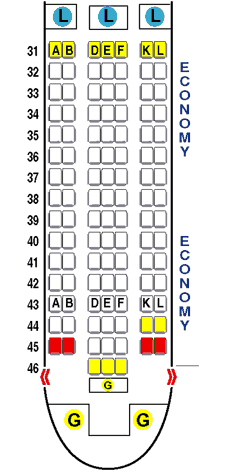
    Notice there are no restrooms in the rear of this United 767.

    1. Oversell the flight and then offer passengers $300 (on a $1750 ticket) to take a later flight. Make sure there are no flights until the next day.
    2. Change planes so that some passengers who upgraded to Economy Plus no longer have seats. Try to sell an upgraded seat to the same person who already paid for an upgrade and then tell them no upgrades are available.
    3. Make sure there’s only one gate agent available when there are 20-30 people in line with seat problems.
    4. Do not help the passenger you screwed over and fail to refund the $340 they paid for their seat upgrades. We were told they couldn’t do this at the airport and we needed to fill out a form on their website.
    5. Remove all of the rear restrooms so you can sell more seats. This isn’t the case on all United flights, but we encountered this on our 767 flight from Paris to Houston. I checked SeatGuru and found the seat configuration for our plane. Apparently United got those planes from Continental. They might be O.K. for short flights, but should NEVER be used on a sold-out 11 hour international flight.
    6. Remove any standing area around the restrooms in the center of the plane so people have to either block the aisle or stand in the bulkhead aisle seating area.
    7. Make sure all of your flight attendants working in coach are old and grumpy.
    8. Allow the coach seats to recline so far that passengers can hardly view a movie when the asshole in the front of you reclines.
    9. Have people at the gate who have no idea how to board an airplane.
    10. Board passengers from the front of the plane to the rear to ensure a massive traffic jam in the aisle.
    11. Make sure families are not allowed to sit together. We were scattered all over the plane. Two of our three passengers were forced to sit in middle seats, even though we paid extra for aisle seats.
    12. Turn up the pre-flight announcements so loud that deaf passengers can hear them.
    13. Pride yourself in creating the worst meals in the air. Our meal on this flight was unbelievably bad.
    14. Move the headphone jack to the headrest in front of you so the cable dangles in your food (This is a Boeing 767 flaw)
    15. Use a touchscreen to save money so passengers have to bang the headrest to change channels (Other airlines including British Air and Virgin allow you to change channels from the armrest. (Another Boeing 767 flaw)
    16. Do not serve free alcoholic beverages with meals on International flights (British Air and Virgin continue to do this along with most other airlines).
    17. Don’t offer Wi-Fi on 10-12 hour flights (in regions where it is available)

    United was bad before they merged with Continental, but they seem even worse now. I will never fly them again and I recommend that you think twice before doing so.

    Note: A week before publishing this article United was contacted and given a chance to try to address some of these issues, so far, no response.

    – Rick

    Copyright 2012 Rick Schwartz. All rights reserved. Linking to this article is encouraged.

    Follow me on Twitter @mostlytech1
    From CDs to Spotify – A Bleak Future for Musicians

    The Connected Car of the Future

    The Connected Car

    Everything You Need to Know About 4G

    Carriers are responsible for much of the confusion around 4G

    There are many myths about 4G. Some are true and others are false. This article attempts to clear up some of the confusion.

    Myth 1: The iPhone 4S supports 4G

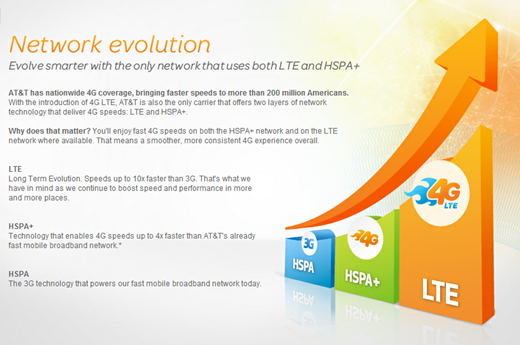
    Reality: That depends on your definition of 4G. Most experts say iPhone is still a 3G phone — even though a 4G icon appears when you’re connected to the AT&T’s HSPA+ network. HSPA+ speeds are faster than 3G, but not near as fast as those found on a good 4G LTE network. One thing is sure: The iPhone 4S does not yet support 4G LTE.

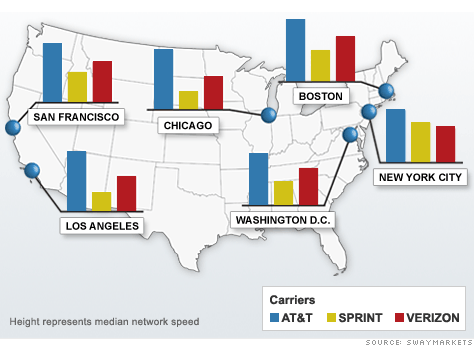
    Several studies have shown AT&T to have the fastest data speeds

    Myth 2: AT&T has the fastest data speeds

    Reality: Studies show that AT&T’s data speeds vary wildly depending on the time of day. Sometimes they’re good, but often they’re mediocre. Download speeds are especially problematic when the network gets more congested in the afternoon.

    Speeds like these are not unusual over LTE

    Myth 3: LTE is 5 to 10 times faster than 3G

    Reality: LTE users sometimes report speeds that are 30 times faster than average 3G speeds. I ran more than fifty Speed Test runs and saw average download speed of 17Mbps, and an average upload speed of 9Mbps. My peak speeds are 45Mbps down and 28Mbps up. Pretty amazing.

    Myth 4: 4G costs more than 3G

    Reality: Most 4G data plans cost exactly the same as 3G data plans. Most Verizon customers pay $30 a month for 4GB of data. 4G phones don’t cost any more than 3G-only phones. You can buy a great phone that supports LTE for as little as $49.

    Myth 5: LTE is new and not supported by many devices yet

    Reality: 4G LTE launched back in 2009, and has been available in the U.S. since December of 2010. More than fifty different mobile devices now support LTE. Learn more about the history of 4G LTE here.

    Myth 6: AT&T and Verizon have similar 4G coverage

    Reality: Verizon has LTE support in more than 250 cities, while AT&T is in less than 40 cities. Sprint and T-Mobile do not currently offer 4G LTE service. See the coverage map above for more details. To access the newest coverage maps, download Sensorly or the Cell Phone Coverage Map app by Root Metrics in Google Play or the App Store.

    Don’t expect to get a 4G signal everywhere you are

    Myth 7: Most carriers have good LTE coverage in large cities

    Reality: Even if your carrier has 4G coverage in your city, don't expect to get LTE everywhere you go. I only see 4G light up about 30% of the time.

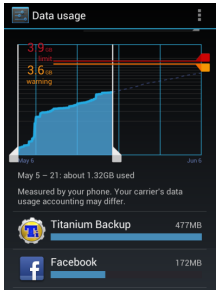
    It’s hard to use more than 2 or 3GB of data

    Myth 8: HSPA+ results in higher speeds when LTE is not available.

    Reality: This depends. In theory having HSPA+ to fall back should result in higher speeds, but according to experts, network congestion makes the drop-off from LTE on AT&T’s network to be just about as steep as Verizon’s.

    Myth 9: Using a 4G phone will cause you to exceed your data allowance

    Reality: In most cases this is untrue. Sure you’ll be able to download data much more quickly, but unless you stream a lot of HD movies, you’re going to have a hard time exceeding the 4GB data limit that carriers like Verizon are currently offering. Even if you do crazy things like backing up your entire phone to Drop Box with Titanium Backup, it’s hard to go over your limit.

    Myth 10: Verizon’s network often feels faster than AT&T’s — even though its data rate is slower

    Reality: This is true. According to a CNN article: “Verizon also has by far the quickest network response time, meaning that Web pages begin loading faster than on any other network after a user clicks on a link. Verizon’s network starts churning in half the time it takes AT&T’s to respond, and often about a third of the time it takes Sprint’s network.”

    Myth 11: 4G can quickly drain your battery

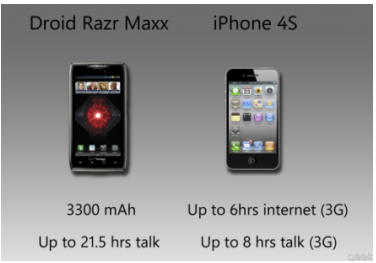
    Reality: This is true. That's why 4G phones like the Droid Razr MAXX include much more powerful batteries. If your 4G phone does not have an extended life battery, upgrade it, buy a second battery, or turn off 4G when you’re in an area without 4G coverage.

    Some 4G phones have better battery life than 3G phones

    Myth 12: Verizon users cannot talk and access the Internet at the same time

    Reality: This is no longer true. You can use any app to access the Internet after you make a call (e.g. Google Maps, web browser, etc.)

    VoLTE allows you to talk over 4G

    Myth 13: 4G can improve the quality of voice calls

    Reality: This is true. Several carriers outside of the U.S. are preparing to launch VoLTE, which along with HD voice codecs, can have dramatic difference on the quality of your voice calls. Verizon is rumored to be launching a voice over LTE service early in 2013.

    Myth 14: HSPA+ is not capable of LTE-like speeds

    Reality: In most cases this is true. HSPA+ is capable of real world download speeds of 4Mbps and higher. Some have even seen HSPA+ speeds as high as 16Mbps when stationary, but these drop way down when you are walking or in a moving car. More info.

    Myth 15: The next big thing after 4G will be 5G

    Reality: Not true. Carriers plan to increase their data rates beyond current LTE limits by using two 20 MHz channels and/or MIMO antenna arrays. Sprint says this will allow their network to reach speeds of up to 168Mbps.

    As long as you own a device which supports LTE, you’ll enjoy getting data speeds on your phone which are faster than those that you get over home DSL.

    – Rick

    Copyright 2012 Rick Schwartz. All rights reserved. Linking to this article is encouraged.

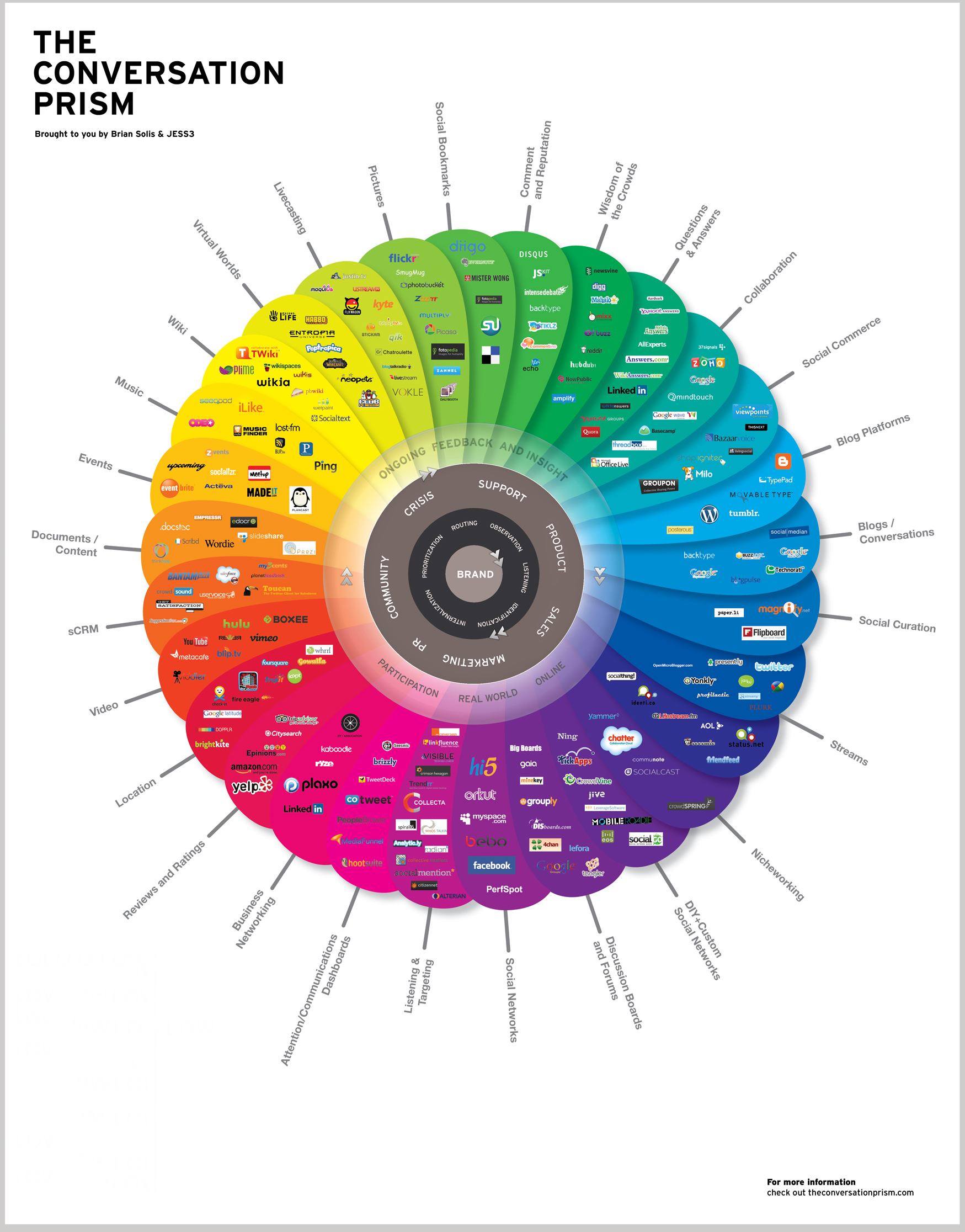
    Visualizing the Social Web

    Why Android Sometimes Gets a Bad Rap

    There’s a reason most people think the iPhone is better than Android phones, but it’s not what you think.

    Most People Prefer iPhone

    Surveys show most consumers prefer the iPhone to Android phones. Although consumers who have switched will tell you it was because the iPhone is a better phone, there is strong evidence against this. The best Android phones are faster, thinner and lighter than the iPhone 4S. They also have bigger screens, higher-resolution displays, more powerful batteries and data speeds that are up to 30 times faster than the iPhone 4S. As far as hardware goes, it’s hard to find much the iPhone does better than the best Android phones. [Scroll to the bottom of this article for more details]

    Software Superiority?

    Software superiority is another thing you’ll hear iPhone users tout over Android, but the quality of Android apps has dramatically improved over the past few years. In some cases, popular Android apps are actually better than their iPhone equivalents (e.g. Facebook, Google Maps, etc.). What about stability? Recent studies show that iOS apps crash more than Android apps. What about the operating system? Although you’d think iOS 5.0 would have more advantages over Android 4.0, it’s the other way around. Here’s proof. So, why does everyone think iPhone is better than Android phones? You’ll hear fragmentation mentioned a lot, but I don’t think that’s the biggest reason. There is a strong argument that the biggest problems facing Android today are caused by those who sell it. I’m talking about the retailers, carriers, salespeople and handset manufacturers.

    Too Many Choices

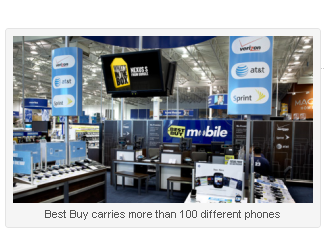
    As far as the retailers go, I believe the carriers and big box retailers are one of the biggest reasons consumers think Android phones are inferior. When a consumer goes into a retailer like Best Buy they are often overwhelmed by the number of different Android phones the store carries. Most are the phones are old and should have been removed from the shelves. Some of the phones were bad phones the day they were released. Gizmodo just printed a list of the worst phones you can buy and you’ll find many of these in carrier stores and big box retailers today. I looked at last week’s Best Buy newspaper ad and saw that two of Gizmodo’s “worst phones” were being advertised in it. The odds of a typical consumer picking one of the best Android phones in a big box retailer is slim.

    Apple displays no more than four phones on each side of a table

    The Apple Experience

    When you go to an Apple Store there is almost always only one type of iPhone on display. It’s always the newest iPhone and it sells for $199 to $399 (with a two-year contract). The only decision you need to make is what color case you want, and how much storage you need. It’s impossible to purchase a bad iPhone in a retail store. The contrast between the Apple and Android shopping experiences is dramatic.

    You Get What You Pay For

    When most consumers shop for a new Android phone the number one thing they look for is price. They want a deal and most of the time the deals are on older phones, which are slower and are not running the newest version of Android. Cheap Android phones have low-quality displays and slow processors. Most of the time, they look and feel cheap. There is a reason these phones are not being sold for list price. You get what you pay for. You’ll never see an iPhone 4S for free. They cost $199 to $399 (with a service plan) and they are worth it. Just like the best Android phones are worth $199 to $299. The bitter irony is the fact that you can often find great Android phones like the Samsung Galaxy Nexus on sites like Amazon for as little as $49. Deals on old iPhones exist as well, if you know where to look.

    Few People Run Android 4.0

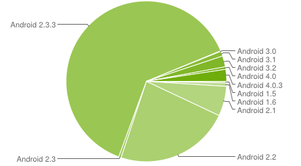
    Fragmentation may not be the biggest problem, but it is an important issue. Studies show 80% of all iOS users are running the newest iOS software (iOS 5.0 or later) while only 5% of all Android users are running Android 4.0. Update: As of July, this number is 11%, but it’s still too low. Most smartphone owners have never even seen Android 4.0 in action. The majority of Android users (64%) are running Android 2.3, which was released way back in December of 2010. Google has made hundreds of improvements to Android since then.

    Here’s a list of Android phones which are running Android 4.0.

    Good Advertising is Essential

    The Quad-core based Asus Transformer Prime was a revolutionary tablet when it was released back in December of 2011, but it was never advertised on TV. I don’t remember seeing it in any print-based ads either. How did it sell? I should not come as a surprise that the iPad 2 eclipsed it in sales, even though the Transformer Prime is much faster, thinner, lighter and has many other advantages.

    While Android tablet ads are rare, it’s impossible to watch TV without being bombarded by Apple’s ads. Apple advertises far more than any other mobile device manufacturer. They teach consumers how to use their products feature by feature, and they make you feel like you must purchase their products or you’ll be left out. And it works like a charm. Millions of people line up to buy every new Apple product – even the ones which aren’t that great.

    Google’s Nexus phones provide a more iPhone-like experience

    Every iPhone is a Nexus Phone

    Once a year Google releases a new Nexus phone with the newest Android OS, state of the art hardware and no carrier bloatware. Since Google and other developers use this phone to test their own software, these phones tend to be very reliable. You could say that every iPhone is a Nexus phone. Apple comes out with one new phone a year and they have all of the advantages of a Nexus phone.

    Don’t compare apples to oranges

    Comparing Apples to Apples

    The bottom line is you can’t compare apples to oranges when you’re shopping for a new phone. If you’re prepared to spend $200-300 on an iPhone, you should look at Android phones in the same price range. It’s not fair to compare a $300 iPhone that’s only been out for a few months with a two year old Android phone that’s free. Never buy an Android phone that isn’t running the newest OS, and take the time to learn which are the best smartphone before you go into a store. You owe it to yourself to get the best phone your money can buy — even if that means buying an Android or Windows phone.

    Fixing Android’s Perception Problems

    There are some things Google (along with those who manufacture and sell Android devices) could do to be on a more level playing field with Apple.

    • Google should open up their Nexus phone program to any phone that meets strict guidelines (no carrier bloatware, newest OS, quality components, etc).
    • Google should raise the bar on their Nexus program so it includes things like minimum battery life requirements.
    • Google should insist that carriers make all OS updates available immediately. Verizon has caused big problems in this area.
    • Google should start an Intel Inside-like marketing program like where they provide marketing dollars to those who meet strict guidelines. This would make it easier for manufacturers to advertise their products on television.
    • Retailers should reduce the number of Android phones they carry, and stop advertising bad phones.
    • Retailers should color-code phone signage so it’s more clear what the best phones are from each carrier.
    • Handset manufacturers should focus more on quality — and not quantity, and advertise their products more.
    • Everyone should produce commercials that appear to typical consumers. It’s amazing how many bad Android commercials there are. This is one thing Apple does very well.

    Will Google change? There are signs they may be changing already. Expect to hear more at their Developers conference in June.

    Android Phones that are Superior to the iPhone 4S

    Here are some examples where Android phones beat the iPhone 4S in side-by-side hardware comparisons:

    • Android phones that have faster CPUs than the iPhone 4S include the HTC One X, HTC One S, HTC Rezound, Droid RAZR Maxx, Samsung Galaxy Note, Samsung Galaxy Nexus, Samsung Galaxy S II Skyrocket, Droid 4, HTC Vivid and many others.
    • Android phones that are thinner than the iPhone 4S include the Droid RAZR, Droid RAZR Maxx, HTC One X, HTC One S and others.
    • Android phones that are lighter than the iPhone 4S include the Droid RAZR, HTC One X, HTC One S, Samsung Galaxy S II Skyrocket and others.
    • Android phones with higher-resolution displays than the iPhone 4S include: HTC Rezound, LG Nitro HD and others.
    • Android phones that have bigger screens with more pixels than the iPhone 4S include: HTC One X, HTC One S, HTC Rezound, Droid RAZR Maxx, Samsung Galaxy Note, Samsung Galaxy Nexus, Samsung Galaxy S II Skyrocket, Droid 4, HTC Vivid and too many others to list here.
    • Android phones with more powerful batteries than the iPhone 4S include the Droid RAZR Maxx, Droid 4, LG Nitro HD, HTC One S, HTC One X, HTC Rezound, HTC Vivid, Samsung Galaxy Note, Samsung Galaxy Nexus, Samsung Galaxy S II Skyrocket and too many others to list here.
    • Android phones with much faster data speeds than the iPhone 4S include the Droid RAZR Maxx, Droid 4, LG Nitro HD, HTC One X, HTC Rezound, HTC Vivid, Samsung Galaxy Note, Samsung Galaxy Nexus, Samsung Galaxy S II Skyrocket and too many others to list here.

    In the end, the decision which smartphone to purchase is yours. Since there is a good chance you’ll have to use it for at least two years, make sure to choose wisely.

    – Rick

    Copyright 2012 Rick Schwartz. All rights reserved. Linking to this article is encouraged.

    Follow me on Twitter @mostlytech1