How to Evaluate Smartphone Cameras

The Motorola XT928 (Dinara) is the world's first 13MP camera phone

A 13 Megapixel Camera Phone?

Today’s best smartphones have 5 to 8-megapixel (MP) rear-facing cameras  which take surprisingly good pictures. 8MP is impressive, but 13-megapixel camera phones like the Motorola XT928 are available today in China (and soon in the U.S). Unfortunately, most tablets are way behind smartphones when it comes to camera technology. The iPad 2 has one of the worst cameras, while the iPhone 4S has one of the best. Both of the cameras in the iPad 2 are less than one megapixel and take horrible looking photos and video. What were they thinking? The good news is, cameras in tablets are starting to improve. The HTC Jetstream has an 8MP camera.
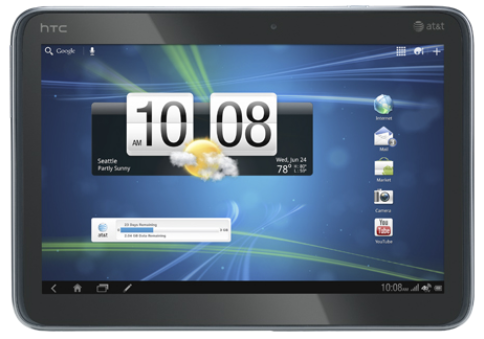
The HTC Jetstream was the first tablet with an 8MP camera.

Newer phones also have front-facing cameras which are used for video chat and other applications. For example, the Samsung Galaxy Nexus uses its front-facing camera to unlock the phone after it recognizes your face. Today, most front-facing cams are only 1.3 to 2.0 megapixels, but there are some exceptions — like the BlackBerry PlayBook, which has a 3MP front-facing camera.

Where are the Xenon Flashes?

The camera flash is another area which is improving. Some mobile devices have dual-LED flashes which put out more light than a single LED. A Xenon flash puts out even more light than a dual-LED flash. Although no smartphones have Xenon flashes today, a Xenon flash was first seen on a Sony Ericsson camera back in 2009.
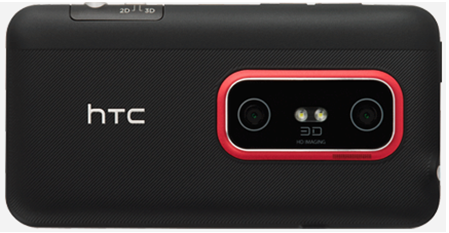
Phones like the HTC Evo 3D have dual-LED flashes

Face detection is another feature which is present on many newer camera phones. It ensures the selected face is in focus. What’s needed now is image stabilization and an optical zoom. Optical zoom is a must for both photos and video. That’s why it’s so surprising none of the popular smartphones available in the U.S. have it. A company called Altek has a 14-megapixel camera with a 3x optical zoom that could rival some point-and-shoot cameras.
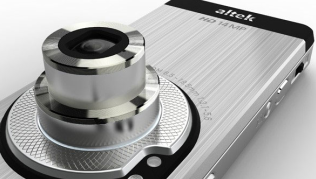
Now that’s a lens!

Although 3D cameras may be a gimmick, they’re fun to play around with. Phones like the HTC EVO 3D can take 2-megapixel 3D photos today.

More than Megapixels

There’s evidence that megapixels alone aren’t the best indicator of photo quality. The iPhone 4 only has a 5-megapixel camera, but takes higher-quality photos than some Android phones with 8-megapixel cameras. One reason for this could be the fact it has a better lens. Let’s hope manufacturers pay attention to this important detail.

One of the most talked about features of the Galaxy Nexus and Android 4.0 is its lack of shutter lag. With this feature, you can take pictures as fast as you can touch the shutter button. Keep in mind this only works when auto-focus isn’t needed.
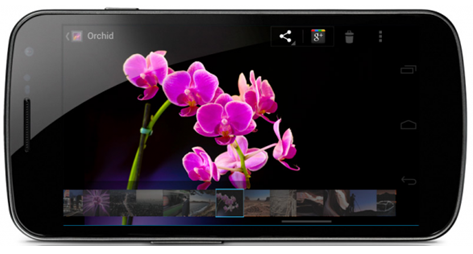
The Samsung Galaxy Nexus has a stellar light sensor and almost no shutter lag when taking photos in rapid succession.

Easy Panoramas for All

Although panorama apps have been available for years, this feature is now standard on all devices with Android 4.0. After panorama mode is enabled, you just need to press the shutter button while you pan to the left or right. When you’re done, the images are automatically stitched together. Now Anyone Can Take Great Looking Panorama Shots

Making Movies

Video recording is another area which can be improved in smartphones. The iPhone 4 records video at 720p, but displays it on a 640-pixel screen. The iPhone 4S and most of the new Android phone phones (e.g. HTC Rezound, Motorola Droid RAZR, all Samsung Galaxy phones) record video at 1080p. 3D video recording is improving as well. The HTC EVO 3D can record 3D 720p videos. In the not so distant future, phones and tablets will also support Dolby Digital.
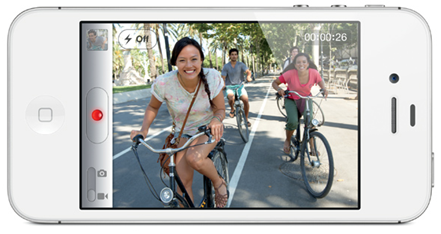
The iPhone 4S can now record 1080p video

Microphone quality is another area that can be enhanced. The Droid X’s camcorder has three microphones and four different audio recording modes.

Running Out of Space?

Storage can be a problem for those who take lots of pictures and movies. Some phones on have 16 or 32GB of storage and that’s not enough for some users. Expandable storage is available today on most Android devices, but many limit this to 32GB. Those who need more than this, should consider devices with hybrid or solid-state disk (SSD) drives which provide up to 250MB of storage. Because SSD drives have no moving parts, they are up to 2 to 5 times faster than conventional hard drives. Because these devices are larger, initially, they will only be available with tablets.

The Last Word

The cameras found in the best mobile devices take photos in good light which look surprisingly good. In some cases, they look similar to those taken with a point-and-shoot camera. Although a good DSLR still has it’s place, you can’t beat the convenience of camera phones and the quality of their photos continues to improve.

Thanks to @rossrubin for pointing out that camera phones with optical zooms are available in Japan.
Copyright 2011 Rick Schwartz. All rights reserved. Linking to this article is encouraged.
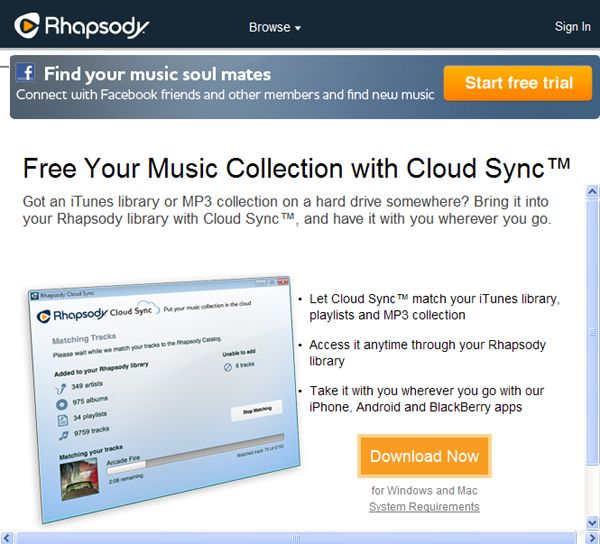
Review: A First Look at Rhapsody Cloud Sync

This is the first (and only) review of Rhapsody’s new cloud-based music sync service. When you see this on Engadget in a few months, remember that you saw it here first.

Even though cloud-based music services like Rhapsody have been around for more than ten years, they are the hottest thing in digital music today. Spotify, Google, Amazon and of course Apple are all getting tons of press about their cloud-based music services. There are two different types of cloud-based music services:

  1. Subscription music services like Spotify and Rhapsody
  2. Music lockers like Apple’s iTunes Match, Google Music and Amazon’s Cloud Drive. And of course we can’t forget the world’s first music locker: My.MP3.com, which launched all the way back in January of 2000.

With so many music lockers out there, does the world really need another one? Rhapsody apparently thinks it does. So let’s take a first look at Rhapsody Cloud Sync and see if we agree.

The Pitch

All cloud-based music lockers have the same basic benefit: Sync your music with the cloud once, then access it from your computer or mobile devices anywhere in the world. Sounds good to me. Let’s see what the system requirements are:

There’s nothing too scary in the system requirements. Rhapsody Cloud Sync should work with most computers and Netbooks sold over the past five years. Some people will be disapointed that no lossless file formats are supported (e.g. FLAC). And of course if you purchased music from iTunes before they removed DRM, you’re out of luck.

Membership has its Privileges

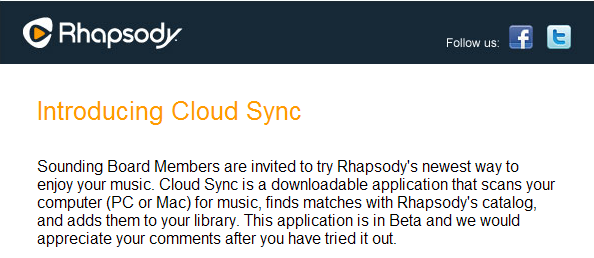
Rhapsody Cloud Sync is currently in Beta and only available to what Rhapsody calls Sounding Board Members. I was probably added to this list because I’ve participated in earlier Rhapsody polls. Although this Beta is closed to the general public you can download Rhapsody Cloud Sync for yourself if you follow me on Twitter @rickschwar. I recently tweeted the download link along with the username and password that you’ll need to get access to the software. You’re welcome.

The Installation Process

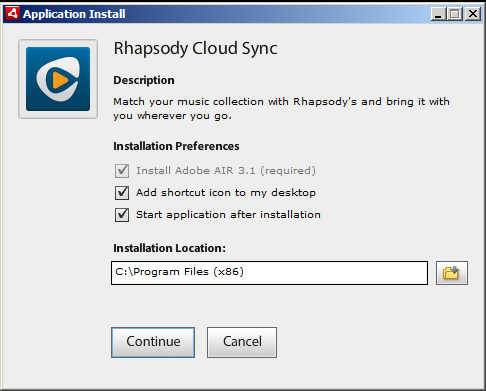
After you enter the credentials and log-in, you’ll see the first installer screen. For most, there’s nothing to change here, so press Continue and move on.

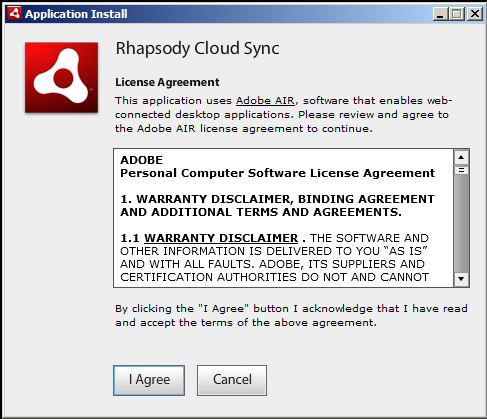
I didn’t take the time to read the license agreement. I just blindly clicked “I Agree” like everyone else does. What we don’t know can’t hurt us right? Reminds me of the South Park “Human CentiPad” episode.

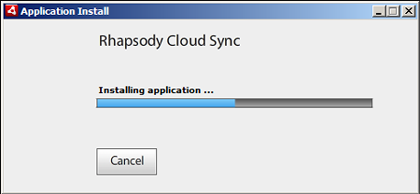
The actual download and installation process was fairly fast.

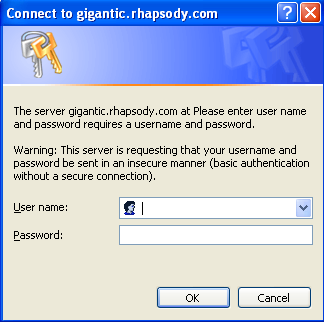
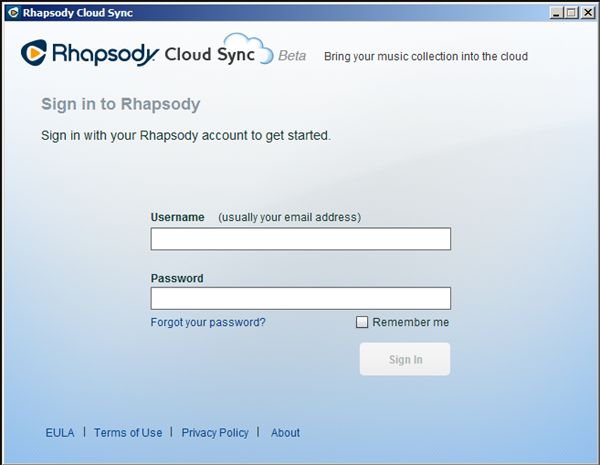
Hurdle #1: Now we’re asked to log-in to Rhapsody. It would have been nice if they mentioned that a Rhapsody account is needed in the System Requirements. Although I have an account, here is where most people will stop. It’s worth mentioning that it took about 15 seconds to authenticate me after I logged in. Hopefully it doesn’t take that long every time you log-in.

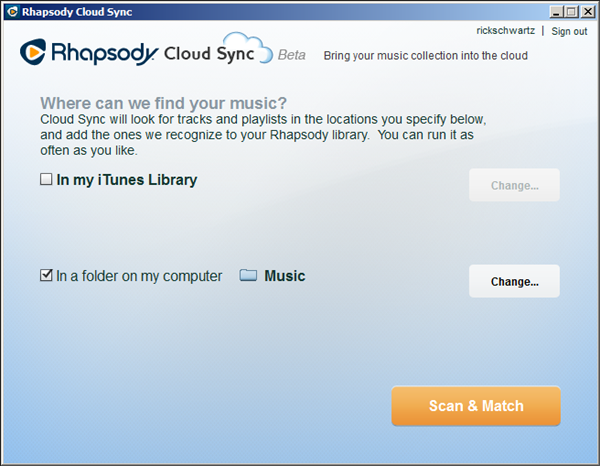
Of course the software needs to know where your music is in order to scan it. If you have your music in the My Music folder, or the default iTunes path, you can press the Scan and Match button now.

The Long Wait

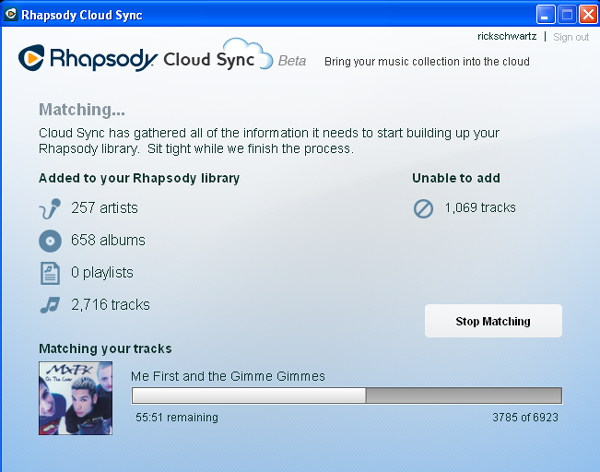
Hurdle #2: I don’t know why I thought something would happen within a few minutes, but that is not the case. Here is how my screen looked after one hour and ten minutes. Notice that the software has only been able to sync about a third of my music library so far. 😦

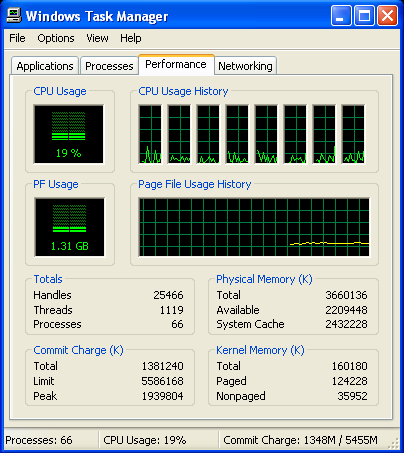
During the syncing process, it was clear to me that something was slowing my computer  down. I checked the CPU usage and found it jumping between 4 and 20%. That surprised me considering the fact that I have an Intel i7 860 CPU which runs at 2.79GHz. My network bandwidth is 42Mbps upstream and 45Mbps downstream, so network bandwidth was not the cause of the slowdown either.

The Result

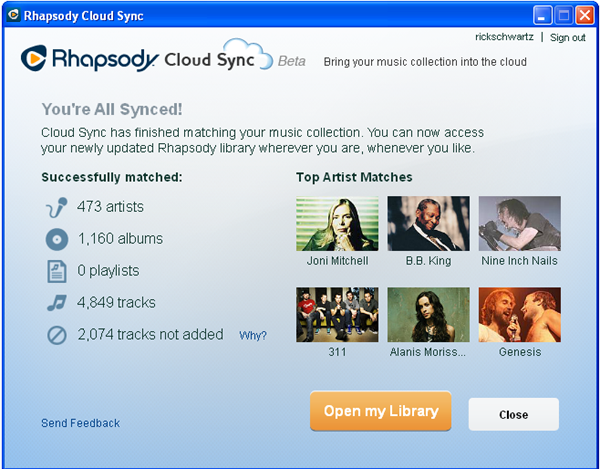
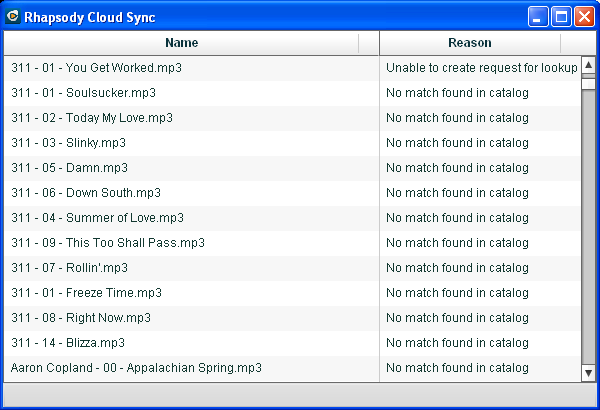
After about 2 hours and ten minutes the cloud sync process finally finished. The bad news: Only 4849 of my 6923 tracks were identified. It’s possible that some tracks were identified, but Rhapsody doesn’t have permission to sync them, but I scanned the error log and 99% of the missed tracks said “No match found in catalog”. And it wasn’t just the more obscure songs that were missed, many popular artists had albums which could not be sync’d.

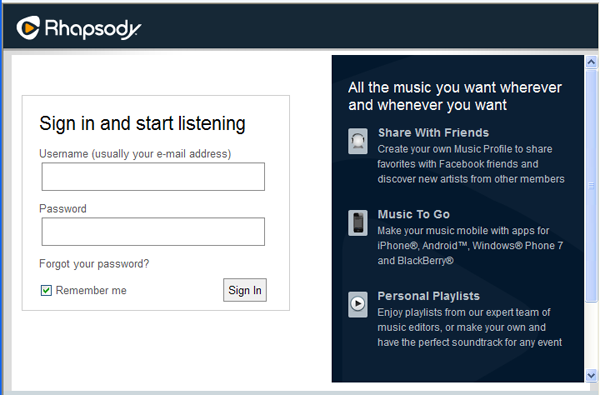
Hurdle #3: I then clicked on the Open My Library button for the big payoff I had been waiting 2 hours for, but I had to sign-in again. This is probably a temporary restriction due to the Beta status of this software, so I won’t complain about it.

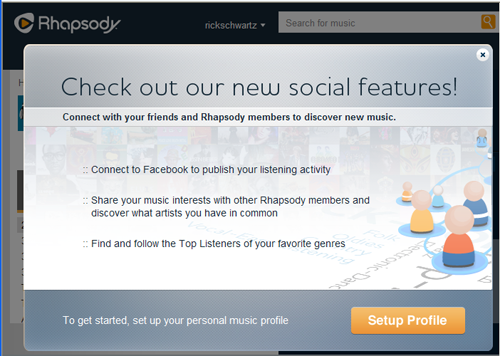
Hurdle #4: Really? Another sign-in page? This is starting to test my patience…

As you can see, Rhapsody is promoting the social features of their music service. Since I’m fed up with Spotify announcing what I do to my Facebook friends, I passed on the option to setup a music profile and connect to Facebook.

The Big Payoff

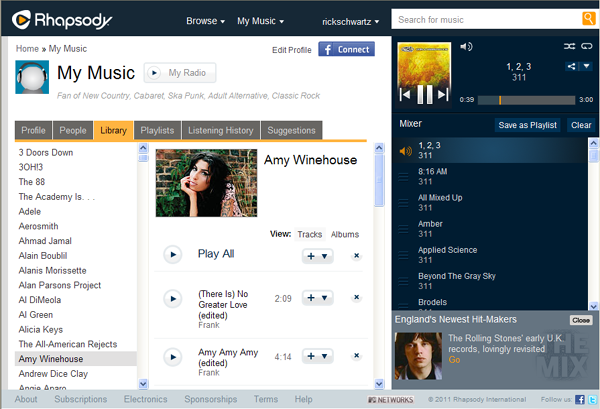
Although the software is still beta, it’s not the cleanest user-interface I’ve ever seen. I clicked on profile and was a little surprised to see that Taylor Swift was my favorite artist. I never listen to her music. I was even more surprised to see that cabaret was one of my favorite styles of music. Again, I never listen to that type of music — not that there’s anything wrong with it. Then I remembered my daughter uses my Sonos controller 24/7 to music from Glee and Taylor Swift. Mystery solved!

The Interface

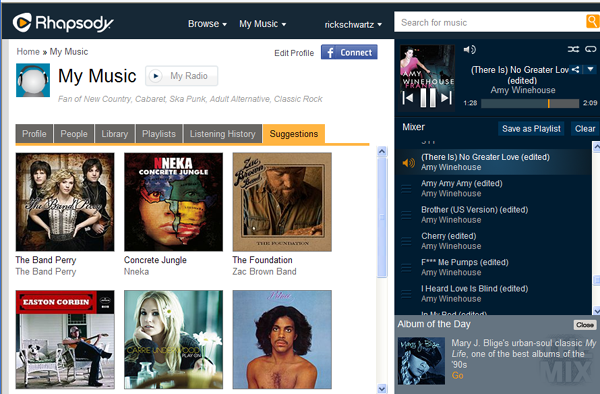
There are six tabs on the interface: Profile, People, Library, Playlists, Listening History and Suggestions. All of the tabs are pretty self-explanatory. You can see the Suggestions tab above. Profile contains info about me and my favorite artists. The People tab is blank because I didn’t link with Facebook. Playlists showed all of my Rhapsody playlists, which is nice.

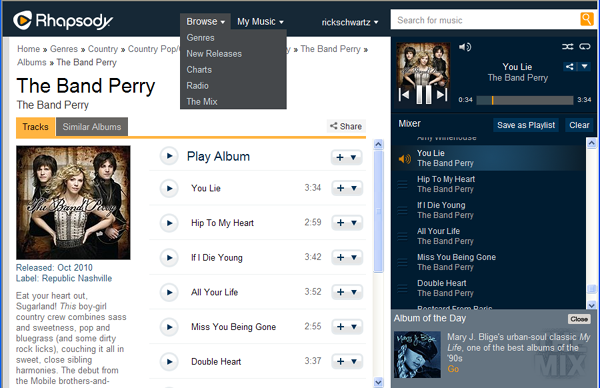
The Browse and My Music tabs at the top also take you to the Rhapsody subscription music pages. I like the player interface on the right, and how it works for my sync’d songs and music in the Rhapsody service. Playback was almost instant. Sound quality was good, but not great. Last I checked, Rhapsody was using the Windows Media codec streaming at 160kbps.

Cloud to Mobile

I launched the Rhapsody app on my iPhone 3G to see what the experience was. Truth be told, I don’t use this app, because the last time I tried it is was painfully slow. It appears not much has changed. It took almost a minute simply to launch the app. The splash screen touted substantially improved music playback times. I can’t wait to find out if that’s true. I clicked on the My Library cloud icon at the bottom. Nothing appeared on the screen for the next 30 seconds. Then a screen worth of artists appeared, but it took another minute for the Updating icon to go away. I clicked on the artist “Adele” and it took more than a minute for album art and songs to appear on the screen. Granted, I currently have Wi-Fi off and I’m on AT&T’s horrible 3G network, this performance is unacceptable. Finally a picture of Adele appeared along with her bio, but still no songs. Another few minutes goes by… and finally two albums appear. This time it only took about 12 seconds to display the songs. I click on a song and 20 seconds later I hear music. If this is “substantially improved” playback, I can imagine what it was like before.

UPDATE:
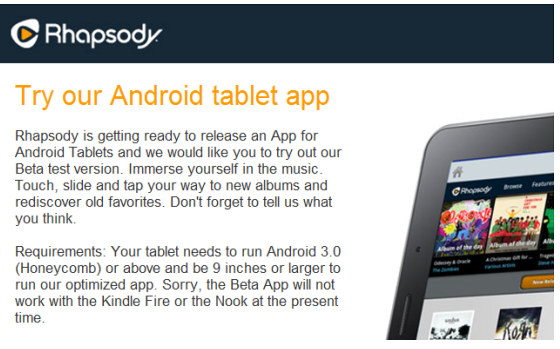
I just tried Rhapsody Cloud Sync with an Android phone running on Verizon’s 3G network. Playback speeds were much better on both 3G and Wi-Fi. It took about 2 seconds to begin playback over Wi-Fi, and 5-10 seconds to begin playback over 3G. I suspect their iOS app is capable of similar performance over Wi-Fi or a good 3G/4G network. Rhapsody has also release a new update for tablets, but I can’t run it because my Rhapsody account only lets me run on one mobile device. You have to pay more to run on 3 devices.

The Rhapsody Beta program has been expanded to include a new tablet version.

Final Words

Rhapsody Cloud Sync appears to work pretty well on computers. Although it’s still Beta, I didn’t encounter any problems other than the ones I attribute to their slow iOS app. Although this service seems to work as advertised, I gotta be honest, while I’m a big fan of subscription music services like Spotify and Rhapsody, I don’t see that much value in uploading music to the cloud. The idea of anytime access to my music from computer, tablet or phone sounds good, but it only works when you have a good Internet connection. My experience using Rhapsody Cloud Sync over AT&T’s 3G network was very poor.

Maybe I just don’t get it. Make a comment below to let me know what you think about this (and other) cloud-based music lockers.

– Rick

Copyright 2011 Rick Schwartz. All rights reserved. Linking to this article is encouraged.
Follow me on Twitter @mostlytech1

Connected Home Best Practices

Last update: February 17, 2013

This article has had over 700,000 views! Thanks for reading it.

Back in 2009, there wasn’t much information around to help people set up a home network for multimedia, so I wrote an article called Connected Home Best Practices. This is an updated version of that article.

Connected Home Benefits

Before I get into any details, I thought I’d mention some of the benefits you might experience if you follow my guidelines below.

  • Watch all of your of your movies on any TV in the house without inserting a disc into a DVD player

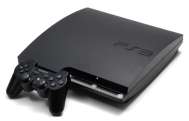
    You can use a game console like this to access your media

  • Access your entire music collection of CDs and downloaded music from your receiver, computer, tablet or smartphone. You can even play different music in every room if you want
  • View any photo you’ve ever taken on any TV in your house or any mobile device
  • Drag and drop photos from Flickr, Facebook, Photobucket or Picasa Web onto a device to view them
  • Access your media 24/7 without turning on a computer
  • Copy media from your computers to mobile devices with needing a cable
  • Access all of your media from a game console
  • Have media automatically copied from your mobile device to your backup drive when you enter your home

These are just a few of the things which are possible with a multimedia network and connected devices.

Step 1 – Preparing Your Media

This first step is to collect all of your media assets. If you haven’t scanned your analog photos and digitized your home movies, you should consider doing that first. If you have DVD  movies, you might want to consider converting those to digital files as well. There is already a lot of info on the Internet about this, so I’m not covering it here. Here are some important things to consider as you prepare your media to be shared.

Some people digitize their DVD movie collections for easy access

    1. As you create your digital media library, try to use formats which are supported by the devices you plan to use. If you’re using AirPlay devices like Apple TV, you should use the following: AAC, MP3, Apple Lossless, AIFF and WAV audio; JPEG, GIF and TIFF images; H.264, MPEG-4 and Motion JPEG video (up to 720p). More info. If you’re using DLNA-certified devices you should try to stick with MP3 or LPCM audio; JPEG photos; and MPEG-2, MPEG4, WMV9 video. More info.
    2. Avoid buying copy-protected media when the same content exists in a legal, unprotected form. Unprotected media is superior because any device can play it and you’ll never have to worry about losing your licenses.
    3. When ripping audio CDs, choose high-bit rate MP3 or linear audio (WAV) over FLAC or Apple Lossless (ALAC), because not every device can play these formats. If you insist on lossless audio make sure all of your devices can play the format you plan to use.
    4. It’s essential that all of your music files have accurate ID3 tags. Your media server uses these tags to create its navigation trees. If any of your music files are missing artist, genre or album tags, those artists/genres/albums won’t appear in the navigation tree. You can still access that media from the song list, but it’s more time consuming. Tip: Software like Tag & Rename, can convert filenames into ID3 tags.
    5. Avoid editing metadata using iTunes or Windows Media Player unless you’re sure the changes you make are stored in your media as a standard tag format. Older versions of iTunes and Windows Media Player stored changes in the local database, so they would be lost when a file was moved. It’s better to use specialized software like Media Monkey, which enters metadata directly into an ID3 or EXIF tag, so it can be imported by software on any Mac or PC.

This drive backs up 2TB of media for only $159

  1. Create separate folders for each artist in your music library. Each artist folder should contain separate folders for each album. Each album folder should contain a JPEG file for the album cover. Normally this file is named “folder.jpg”. Your media server will use this file as album art. You can also embed album art in each music file as an ID3 tag, but doing this with file formats like WAV can cause problems with some media players.
  2. It’s a good idea to create separate folders for each year in your My Photos folder. Inside each year folder, you should have subfolders for different photo albums.
  3. You may want to also use software like Windows Live Photo Gallery to add tags or descriptions to your photos.
  4. And last but not least, make sure to perform regular backups of your media. After you do all this work, you won’t want to lose it.

Step 2 – Selecting a Media Server

    1. If you want to access your media without a computer on, you’ll want to get a network-attached storage device (NAS). Make sure your NAS has an embedded media server. Beware of older or inexpensive NAS devices. Some of these have memory limitations or slow CPUs have problems with large media collections.
    2. Do not encrypt the data on your NAS (at the partition or at a file level). The performance hit which occurs when you do this  is massive and the drop in transfer rates is likely to cause problems streaming video.

A NAS provides 24/7 access to your media

  1. Avoid using software like Microsoft’s Windows Media Player or Apple’s iTunes to share your media files. Premium media servers like TwonkyServer (and others) are faster and more reliable. They also support more devices and file formats.
  2. Make sure the virus scanner on your computer or NAS is not a CPU hog. Poorly designed virus scanners can cause skipping  problems during playback.
  3. Avoid running software firewalls like ZoneAlarm (unless you know how to configure them so they don’t cause problems). Make sure your software firewall isn’t blocking any of the ports it needs to function. Check the manufacturers’ site to obtain this info.
  4. Avoid storing media on a network share. It’s better to share content from a hard drive in the same device where the media server resides. Network shares increase the traffic on your network and can be unreliable.
  5. Don’t nest your media deeply under many levels of folders. Doing so, can slow down media scanning and increase the size of your media database.
  6. Be careful which folder you select as your watched folder. Do not select a folder your Operating System constantly updates, like a Temp folder, bit-torrent download folder, or the Windows System folder. A watched folder with lots of changes can slow down your media server.

Step 3 – Choosing a Connected Media Player

There is no single media player that’s good at everything. Each has its own strengths and weaknesses. Here are some suggestions which will help you to choose the right media player for your needs:

    1. Consider buying products which have been DLNA-certified because they normally undergo a higher level of testing than other connected devices. You can search for DLNA-certified products here.
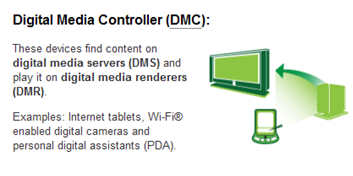
    2. Not all DLNA-certified devices can be externally controlled. Make sure your media player can accept media which is pushed from your computer or mobile device. Many devices only can pull media using their remote controls. You can find a list of devices that meet this requirement here.
    3. If you’re having problems with a device, check to see if a newer firmware update addresses those problems. Keep in mind installing new firmware can create problems, so you should only do so if you know it will fix a problem you’re experiencing, or you can revert to a previous version if needed.

The Sony PS3 is a photo and music player, but you can’t beam media to it.

    1. Before using a game console as a media player, you should be aware of their limitations:
    2. You cannot beam media from your PC or mobile device to a Sony PS3 or Nintendo Wii. The Xbox 360 can accept pushed media, but only when it’s in Media Center Extender mode.
    3. Game consoles do not support as many formats as other digital media players.
    4. The Xbox 360 does not display all of the items in the Twonky navigation tree. As a result, you won’t see things like By Folder, Artist Index, Artist Album, Genre Index, Genre/Artist.
    5. Most game consoles, connected TVs and Blu-ray players can only play a limited number of media formats. Because of this, you’re often better off purchasing a low-cost connected media player, like a WD TV, which supports a wider range of formats.

What to look for in a connected photo and video player

      1. Make sure your digital media player can automatically scale photos so they appear full-screen. Not all connected media players and TVs can do this.

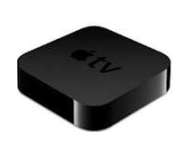
Apple TV handles pushed slideshows well

      1. The best digital media players, like the PS3, have nice transitions in-between photos and let you play music in the background while you are watching a slideshow. Xbox 360 has a nice zoom transition effect on photos. At this time, there are no media players other than Apple TV, which can display a continuous slideshow of photos pushed from a computer or mobile device. In most cases, a black or blue screen appears in-between each photo. If you experience this problem, use the remote which came with your device and select a folder of images to view. If you do this, you should see nice transitions between every photo.

      1. Don’t assume all media players can stream 1080p videos. Some can only play 720p, or have stuttering problems when they play 1080p.
      2. Don’t assume your connected TV will be able to play all popular media formats. Most DLNA-certified TVs can only play MPEG-2, AVCHD and a few other formats. Don’t expect 3GP, QuickTime, DivX, MKV or YouTube videos to play on these devices. If you want to play YouTube videos, you’ll need a Samsung TV, Sony TV (2011  or later), Xbox 360 or a WD TV Live.

What to look for in a connected music player

      1. Should be able to play all popular music formats (e.g. MP3, FLAC, AAC/M4A, ALAC, WMA and Ogg Vorbis).
      2. If you don’t have a connected receiver you should connect a media player your stereo receiver.
      3. Don’t assume that all media players can accept music playlists that are beamed from computers or mobile devices. Some only allow one song to be sent at a time.
      4. Don’t assume all connected devices can have their volume changed externally. Most stereo receivers disable this feature.
      5. Look for media players which can be grouped so you can have the same music playing in different rooms of your home. Examples: Linn multi-room music systems, Philips Streamium players, Sonos ZonePlayers, etc.
      6. If you have a great stereo system, make sure your media player has an optical output or good audio converters (e.g. Linn products, Sonos Zone Players).

What to look for in a media controller


Your computer or mobile device can act as a media controller. They can be used like a remote to play/stop or skip media. They can also stream media directly to certain devices.

      1. Should work with DLNA-certified devices and AirPlay-certified devices like Apple TV.
      2. A good controller should be available for Android and iOS mobile devices as well as Mac and PCs.
      3. A good mobile controller should be able to automatically hand off it’s playlists to an always-on device like a NAS. That way playback will not stop when the mobile device leaves the network or goes into power standby.

Network-related Advice

Not all home networks are ready to stream high-definition video. Here are some suggestions which will make your home network multimedia-ready.

Wired Network Tips

      1. Connect your media players using a wired connection when you have a choice. Wired networks capable of much higher throughput. Cat 6 Ethernet is up to 5 times faster than 802.11n wireless and less likely to have stuttering problems when streaming HD video. 802.11g Wi-Fi is fine for streaming music and photos, but can be problematic for HD video. The data-rate required for DVD-quality video is 9.8Mbps, while Blu-ray is around 40Mbps. Although it seems like a 54Mbps wireless router should be able to handle this amount of data, in reality, it probably can’t. Wired connections also don’t “drop” or have range problems like wireless connections do.
      2. Don’t back up your computer while you’re trying to stream HD video. This can cause videos to buffer.
      3. Don’t connect any of your PCs or devices to the “Internet” or “Uplink” ports on your router or switch.
      4. If you want to stream HD video over the Internet, check your Internet connection speed using sites like this. Most HD Internet movie streaming sites recommend a download speed of at least 3.0 Mbps.
      5. Use Cat 5e or Cat 6 network patch cords and cabling. They cost about the same as regular cable and could be a little faster.

Wireless Network Tips

      1. Dual-band Wi-Fi routers like the Linksys N600, N750, N900 over AC1750 are better for multimedia streaming because they support the 2.4GHz and 5GHz bands. The 5GHz band is much less prone to interference. Use the 5GHz band if your devices support it and range is not a problem.
      2. If you have problems with wireless devices on your network, consider power-line networking alternatives like HomePlug Powerline AV adapters. If you go this route, make sure your adapter is HomePlug AV-compatible so you can mix and match devices from other companies. According a recent article in Maximum PC, last-generation Homeplug AV 200 adapters were supposed to be capable of speeds of up to 200Mb/s. Even though they only got real world speeds were 60-70Mb/s, that’s enough for a single HD stream. Newer devices support the IEEE 1903 standard which is capable of theoretical speeds up to 500Mbps and real world speeds up to 100Mbps. These speeds are even faster than you can get over standard Ethernet wiring, so you should be able to stream multiple HD movies at once in your home using multiple adapters. Consider the TP-Link AV-500 TL-PA511KIT or eNetgear Nano 500 XAVB5101 adapters. Those are two of the best affordable adapters available today.
      3. Another good wireless alternative is Ethernet over coax MoCA adapters like these. Both of these are much more reliable than wireless routers. They are also capable of higher data rates. However, HomePlug is not without problems, it sometimes has issues with split-phase wiring and surge protectors. When using HomePlug, avoid using an AC power strip and plug the unit directly into the wall.
      4. If your wireless devices are having trouble seeing your media server running on your LAN, check your router to make sure that multicast is enabled.
      5. To increase performance, you should try to use wireless channels which do not overlap with your neighbors. If you have an Android device, you should download the “Wi-Fi analyzer” app by FARPROC. It shows which channel has the best signal strength.
      6. Try to place your wireless router in a location where it is as close to your media players as possible. Every time the signal has to pass through a wall it drops in strength. 5GHz wireless loses more signal than 2.4GHz when going through walls.
      7. Be aware that cordless phones, baby monitors, wireless security cameras and microwave ovens can all interfere with 2.4GHz wireless networks.

Router Suggestions

      1. Having devices connected to both wired and wireless networks at the same time can cause problems. If you can’t see your media server or some media players on your network, this could be the cause.

        Free apps like this make it easy to see wireless congestion

      2. Use DHCP because it makes setup easier. Don’t use fancy network setups with multiple subnets and hubs. Doing so can introduce latencies that cause problems with UPnP data.
      3. If you want to be able to stream multiple HD videos at once, make sure there are no 10Mbps routers or switches on your LAN. Use Gigabit Ethernet switches instead.
      4. Some routers and switches work better than others for media streaming. Problems with media playback stopping or stuttering often go away when a new router or switch is used.
      5. Changing router settings can also sometimes improve media streaming performance. Before changing any router setting, make sure to write down the old setting, in case you need to go back to it. If you have a busy network, collisions can occur that reduce your throughput. Lowering the fragmentation threshold can improve performance by reducing re-transmissions. Try setting the fragmentation threshold to 1,000 bytes and see if that improves media streaming. Be aware that using smaller packet adds extra overhead, so you shouldn’t set this value too low. Setting the threshold to the largest value (2,346 bytes) effectively disables fragmentation. Do not change this setting if you are not having media streaming problems. Another parameter that some users experiment with is the UPnP Advertisement Period. Some claim lowering this parameter can cause devices to appear faster on the network.
      6. If your router has a setting to enable or disable UPnP, it’s important you understand what this setting does.
        1. “UPnP AV” is a streaming protocol that allows UPnP software to discover and communicate with other UPnP devices. If this is disabled, you may not be able to discover media servers or media players/renderers on your network. This should be enabled for proper operation.
        2. “UPnP IGD” (Internet Gateway Device protocol) allows software to automatic configure port forwarding for remote access. This setting does not have to be enabled to browse or stream media. In some countries this setting is disabled by default because it can make it easier for hackers to punch a hole in your router’s firewall and gain access to your network. Keep this disabled, unless you need to allow remote access and do not know how to configure this manually. If the router lists UPnP without more details it probably refers to UPnP IGD. Check its manual to make sure.

The Final Word

If you’ve made it this far, you know what you need to optimize your home network for multimedia streaming. I hope you find some of this information to be useful. If you have any additional suggestions, please leave them in the Comments section.

Thanks.

– Rick

Thanks to Christian Gran, Jim Pfeifer, Angela Scheller, Cindy Vivoli, Ken Clapp and pcfe for also contributing to this article.

Copyright 2009-2016 Rick Schwartz. All rights reserved. Linking to this article is encouraged.
Follow me on Twitter @mostlytech1

The Confusion Around Mobile Data Speeds

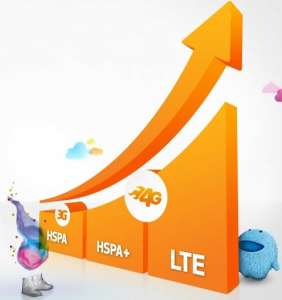
AT&T's marketing chart correctly places HSPA+ in-between 3G HSPA and LTE when it comes to data speeds.

The History of Faux G

Data speeds can have a huge impact on the perceived speed of your mobile device, but there is much confusion around 4G. For the past year all of the carriers have been running commercials about their 4G networks. Truth be told, until recently, Sprint and Verizon were the only U.S. carriers with true 4G networks and mobile devices to support it.

  • T-Mobile was first to call their HSPA+ network 4G and AT&T gave T-Moble grief over it. HSPA stands for “High Speed Packet Access.” Since then AT&T jumped on the same HSPA+ 4G bandwagon. HSPA+ is capable of speeds that are somewhere in-between 3G and 4G LTE. This is why some call it “Faux G.”
  • Sprint uses a different technology called WiMAX and was the first to deploy a true 4G network. Their network is capable of speeds that meet or exceed Verizon’s 4G data network. [Update: Sprint just announced they will be coming out with LTE phones in the 2nd half of 2012.]
  • Verizon launched their 4G LTE network back in December of 2010.
  • AT&T launched LTE in five cities in September 2011 (9 months after Verizon), but didn’t have a single 4G phone until November 2011.

If you’re fortunate to be in one of the 200+ cities with LTE coverage, you’re in for a real treat. LTE is much faster than 3G or HSPA+. How much faster? Verizon claims LTE speeds which are at least twice as fast as AT&T’s 4G HSPA+ and up to 12 times faster than their own 3G speeds. Most LTE users experience real world download speeds of 5 to 12 Mbps and real world upload speeds of 2 to 5 Mbps. These speeds are impressive, but they are conservative. I’ve experienced real world LTE download speeds as high as 45Mbps and upload speeds as high as 28Mbps. Theoretical peak LTE speeds are even higher than these. More info.

The Samsung Galaxy Nexus is on of the few phones with LTE and Dual-Band Wi-Fi support.

The list of smartphones which support LTE today include the Samsung Galaxy Nexus, BlackBerry Torch 9810, Droid Bionic, Droid Charge, Droid RAZR, HTC Rezound, HTC Thunderbolt, HTC Vivid, LG Revolution, Pantech Breakout, Samsung Galaxy S II HD LTE, Samsung Galaxy S II Skyrocket and Samsung Stratosphere. More phones are being added to this list every month. The list of tablets which support LTE today include the Motorola Xoom, Motorola Droid XYBOARD(8.2″ and 10.1″), Samsung Galaxy Tab 8.9, and Samsung Galaxy Tab 10.1. Why isn’t the iPhone 4S listed here? Unfortunately, LTE support isn’t yet available on the iPhone or iPad yet.

Trouble in Paradise?

There are two downsides with LTE that you should be aware of:

  1. LTE phones consume power faster than non-LTE phones. For this reason, in the past some people disable 4G when they weren’t using it. Fortunately most newer phones have more powerful batteries which make this less of an issue.
  2. LTE isn’t available everywhere, and even if you live in a city that has it, you may not always be able to get a 4G signal.

Wi-Fi data speeds are important as well. The best mobile devices support dual-band Wi-Fi. That means they work on both 2.4 GHz and 5.0 GHz Wi-Fi networks. 5.0 GHz networks are less crowded and capable of higher speeds. You can learn more about 5 GHz and view a list of devices which support it here. Some new mobile devices also include support for Bluetooth 4.0, which promises better range and lower energy consumption.

After reading this, you should be better prepared to evaluate the carriers confusing marketing messages about mobile data speeds. If data speeds are important to you, it’s essential all of your mobile devices support either LTE or WiMAX.

My next post will be about Rhapsody’s new cloud-based music service. You can read about that here.

Copyright 2011 Rick Schwartz. All rights reserved. Linking to this article is encouraged.
How to Evaluate Mobile Processors


Since this article was first written, an updated version has been posted here. Check it out. A lot has changed.

The Need for Speed

The HTC Rezound has a 1.5GHz processor making it one of the fastest smartphones

The processor is the engine behind your mobile device and determines its speed. Mobile processor speeds have been increasing quickly over the past few years. Today, most of the best smartphones have processors which are either 1.2GHz or 1.5GHz. The HTC Rezound and Samsung Galaxy S II HD LTE both have dual-core 1.5GHz processors. Processor speed isn’t the only thing that matters. The number of cores is important as well. Back in February, we saw the first smartphones ship with dual-core processors. Dual-core processors allow your mobile device to do more things at once without slowing down. They are also faster than single-core processors and this can result in a more responsive user interface. Over the next year, dual-core processor speeds are likely to top out around 1.7GHz. Although processor speeds will continue to increase, there are limits to how fast they can get. Mobile processors are beginning to face the same performance and power challenges desktop CPUs faced a few years ago. Demanding applications such as HD video playback and advanced gaming are stretching their capabilities. In order to further increase performance and stay within the available power limits, mobile devices will migrate to processors with more cores.

Apple iPhone 4S

HTC Rezound

HTC Titan

Motorola Droid RAZR

Samsung Galaxy S II

Samsung Galaxy Nexus

Samsung Galaxy S II Skyrocket

800MHz dual-core

1.5 GHz dual-core

1.5 GHz single-core

1.2 GHz dual-core

1.2 GHz dual-core

1.2 GHz dual-core

1.5 GHz dual-core

Chart 1: A comparison of the processor speeds of popular smartphones

Four Can Do More

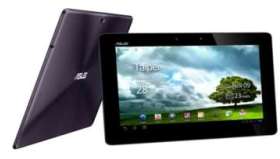
Like PCs, mobile devices will migrate from dual-core to quad-core. Quad-core makes even more sense on platforms like Android which allows multiple apps to run in the background. Having four different cores allows your phone (or tablet) to do more at once without slowing down. Tablets will be the first mobile devices to get quad-core processors.  The NVIDIA Tegra 3 will be the first quad-core processor available on mobile devices. NVIDIA says it has 2 to 5 times the processing power and 3 times the graphic performance of the Tegra 2. This will result in smoother graphics and better gaming performance. The Tegra 3 is also capable of 1440p video playback. That’s higher quality than you can watch on your HDTV. The Asus Transformer Prime will be the first tablet to ship with a Tegra 3 processor, but rumors are also circulating about quad-core tablets from Motorola and others. Smartphones won’t be left out of the party; phones with quad-core chips will be announced at CES in January.

The Asus Transformer Prime will have the first quad-core CPU

Most quad-core processors are more efficient and generate less heat than today’s dual-core chips. That will result in better performance and longer battery life. How much longer? NVIDIA says a Tegra 3 tablet should be able to provide 12 hours of HD video playback.  The first quad-core processor will be 1.3GHz, but speeds will increase to 2.5GHz next year. Those chips will be faster than some of the CPUs that ship with mid-priced home computers today. Of course, NVIDIA isn’t the only company making quad-core processors, Qualcomm, Apple and others will also launch products containing quad-core processors next year.

Amazon Kindle Fire

Apple iPad 2

Asus Transformer Prime

B&N Nook Tablet

HTC Jetstream

Motorola Xoom 2

Samsung Galaxy Tab 10.1

1.0 GHz dual-core

1.0 GHz dual-core

1.3 GHz   quad-core

1.0 GHz dual-core

1.5 GHz dual-core

1.2 GHz dual-core

1.0 GHz dual-core

Chart 2: A comparison of the processor speeds of popular tablets
 

The Importance of the Graphics Co-processor

Some of the fastest phones have separate graphics co-processors, which can have a big impact on performance. Even though the iPhone 4S has a slower processor, it outperforms the Samsung Galaxy S II in some benchmarks. This occurs mainly because the iPhone 4S has a faster graphics coprocessor. See the chart below for details.

Even though the iPhone 4S has a much slower processor than the Samsung Galaxy II S, it outperforms it in some benchmarks. Chart courtesy of AnandTech


Final Thoughts

In summary, the speed of the CPU and GPU in your mobile device has a major impact on its performance. Dual-core processors almost always outperform single-core processors, and quad-core processors outperform dual-core processors. Although dual-core processor speeds are starting to slow down, quad-core speeds will improve substantially next year.  By the end of the year, quad-core processors will be found in most high-end tablets and smartphones due to their improved performance and extended battery life.

In case you’re wondering, my next post will discuss the importance of 4G on data performance speeds. Stay-tuned…

– Rick

Copyright 2011 Rick Schwartz. All rights reserved. Linking to this article is encouraged.
How to Evaluate Mobile Displays


Since this article was first written, an updated version has been posted here. Check it out. A lot has changed.

In my last blog post I talked about the best mobile devices on the market today. This will be the first in a new series of posts that will help you evaluate each part of a smartphone or tablet. Since the display is the main interface to your mobile device, let’s start with it.

Bigger is Better

Three main parameters are used to specify the size and quality of a mobile display:

  1. Screen size measured diagonally in inches
  2. Screen width and height in pixels
  3. Screen density measured in pixels per inch (PPI)

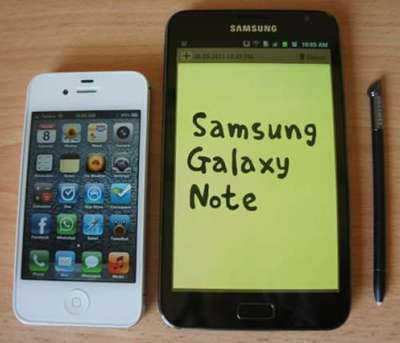
The Samsung Galaxy Note has a much larger screen than the iPhone 4S

Today’s best smartphones have displays which are 4.3″ or larger. The largest screen available on a smartphone in the U.S. today is 4.7″ and can be found on the HTC Titan. Think that’s big? It is, but mobile displays are going to continue to get larger. The Samsung Galaxy Note, which was recently released in Europe, has a 5.3″ screen.  As screens get 6″ or larger, the line between smartphones and tablets will begin to blur and these devices may no longer fit into your pocket. Is it worth it? If you spent lots of time browsing the Web, playing games or working with business documents the answer could be yes.

Screen Size

Pixels (H x W)

Screen Density

Apple iPhone 4S

3.5”

960×640

326 PPI

HTC EVO 3D

4.3”

960×540

256 PPI

HTC Rezound

4.3”

1280×720

342 PPI

HTC Titan

4.7”

800×480

199 PPI

Motorola Atrix

4.0”

960×540

275 PPI

Motorola Droid 2

3.7”

854×480

264 PPI

Motorola Razr

4.3”

960×540

256 PPI

Samsung Galaxy S II

4.3” or 4.52”

800×480

217 PPI

Samsung Galaxy Nexus

4.65”

1280×720

316 PPI

Samsung Galaxy Note

5.3”

1280×800

285 PPI

Chart 1: A comparison of popular smartphone displays

Quality Matters Too!

The HTC Rezound has the highest resolution display available today.

Screen width and height is another popular measurement. Today the best smartphones have 1280×720 pixel displays. The Samsung Galaxy Note has an even larger 1280×800 display. Although the total number of pixels is important, it’s not the best indicator of screen quality. The density of pixels is what really matters.  The higher the pixel density, the more detail a screen can display. Although most people think the iPhone 4S has the highest pixel density, they are wrong. The HTC Rezound has a display with a higher pixel density than the iPhone 4S (342 vs. 326 ppi). Even better screens are on the way. Earlier in the year, Toshiba announced a 4-inch screen with a 367 PPI resolution. Pixel densities are likely to hit at least 386 in 2012.

It’s worth mentioning there is some debate over the ideal pixel density. Steve Jobs once said a device with a pixel density of 300 exceeds the limits of the human retina. However, some photographic experts say that number is too low. They believe the ultimate pixel density is 477 PPI. At that point, it’s said the pixels become invisible to an unaided human eye.

What About Tablets?

Screen resolution is one area where tablets can improve. The best tablets have screen densities below 200 while some smartphones have pixel densities higher than 300. Apple is known for their great displays. How does the iPad 2 compare to Android tablets? Let’s see: The iPad 2 has a 9.7″ screen with 1024×768 pixels. The Motorola Xoom has a 10.1″ screen with 1280×800 pixels. Which is better? The Motorola wins on all three categories: screen size, total number of pixels and screen density (with a pixel density of 160 PPI vs. 132 PPI). If you refer to the chart below, you’ll see there are five other Android tablets with even higher screen densities than the Motorola Xoom. Will we see higher resolution tablet screens next year? Definitely! The Lenovo LePad S2007 will have a 216 PPI display and tablets with 2560×1600 screens will be available some time in 2012. These tablets will have a screen density of at least 300 dpi.

Screen Size

Pixels (W x H)

Screen Density

Amazon Kindle Fire

7.0″

1024×600

169 PPI

Apple iPad 2

9.7″

1024×768

132 PPI

Asus Transformer

10.1″

1280×800

160 PPI

Asus Transformer Prime

10.1″

1280×800

149 PPI

B&N Nook Tablet

7.0″

1024×600

169 PPI

Motorola Droid XYBOARD 8.2

8.2″

1280×800

184 PPI

Motorola Xoom

10.1″

1280×800

160 PPI

OGT Eros Tablet

7.0″

N/A

188 PPI

Samsung Galaxy Tab 7.0

7.0″

1024×600

171 PPI

Samsung Galaxy Tab 10.1

10.1″

1280×800

149 PPI

Chart 2: A comparison of popular tablet displays

That’s Not All

Of course pixel density isn’t the only thing that matters when it comes to screen quality. The color accuracy, color vibrancy, brightness, contrast ratio, black level and viewing angle are important as well. The durability also matters. Gorilla Glass screens are more damage resistant than regular displays. Gorilla Glass 2 screens are on the way, so watch for those.

Well, that wraps up my review of mobile screen technology. In my next post, I’ll write about the heart of every mobile device: Its processor.

Thanks for stopping by.

– Rick

Copyright 2011 Rick Schwartz. All rights reserved. Linking to this article is encouraged.
The Ultimate Mobile Device (Updated Feb.)


Since this article was first written, an updated version has been posted here. Check it out. A lot has changed.

Although there are lots of great mobile devices available today, there is no one single device that is best at everything. It is possible to say which phone (or tablet) has the best display, processor and so on. After reading this article, you should be better prepared to purchase the ultimate mobile device based on your needs.

Best Mobile Display

Since the screen is the main interface to your mobile device, it’s very important. Although the size and total number of pixels matters, it’s the pixel density which determines the amount of detail you’ll see. More info.

The Galaxy Note is the the only smartphone with a 5.3" display

  • First place: The HTC Rezound has a 4.3” screen with 1280×720 pixels and a higher pixel density than the iPhone 4S (342 ppi vs. 326 ppi). The Windows Phone Lumia 900 is the most readable under bright light. More info.
  • Runner-up: The Samsung Galaxy Note has the largest screen you’ll find on a smartphone today. It’s an amazing 5.3” and has a record setting 1280×800 pixels. The reason it doesn’t come in first is because its pixel density is lower than the HTC Rezound. When it comes to tablets, the Samsung Galaxy series have some of the best displays available today, and pixel densities which are almost 30% higher than the iPad 2.
  • What to look for: A tablet with a 2560×1600 pixel screen will be available in 2012. Smartphones will get screens with pixel densities near 400 ppi as well. Also expect to see displays with polarized filters, that make screens more visible in direct sunlight.

Best Mobile Processor

The processor in your mobile device determines how fast your apps will run. Today’s best mobile devices have multi-core processors, which allow your device to do several things at once without slowing down. More info.

The Asus Transformer Prime was the first quad-core powered mobile device

  • First place: The ASUS Transformer Prime has an NVIDIA Tegra 3 quad-core processor which out performs every mobile device on the market today in most benchmarks.
  • Runner-up: The HTC Rezound, LG Nitro HD and Samsung Galaxy S II Skyrocket all have 1.5GHz dual-core processors. The HTC Jetstream tablet also has a 1.5GHz dual-core processor.
  • What to look for: Quite a few quad-core smartphones will be announced in Q1. Dual-core CPUs in smartphones will hit speeds of 1.8 GHz in 2012. Tablet processors will hit speeds of 2GHz in 2012, and could go as high as 2.5GHz.

Fastest Data Speeds

4G LTE devices are at least 5-10x faster than 3G devices

Data speeds have a significant impact on the perceived speed of your mobile device. Verizon claims 4G LTE speeds that are at least twice as fast as AT&T’s 4G HSPA+ phones and up to 12 times faster than 3G speeds. More info.

  • First place: LTE phones like the Samsung Galaxy Nexus and Galaxy S II HD LTE win because they work on LTE networks and support both 2.5GHz and 5.0GHz Wi-Fi.
  • Runner-up: The HTC Rezound, Motorola Droid RAZR, Motorola Xoom, Samsung Galaxy Tab 10.1, HTC  Jetstream and all other mobile devices which support LTE or WiMAX.
  • What to look for: Expect Apple’s iPhone to finally get LTE support in 2012.

Best Camera

Today’s best mobile devices have 8 megapixel rear cameras which are capable of taking surprisingly good-looking photos. Most have LED flashes and front-facing cameras for video conferencing.

The HTC Titan II will be the first phone with a 16MP camera

  • First place: Too close to call. The 12MP Nokia N8 wins on specs with its Carl Zeiss optics and a xenon flash, but it’s on a Symbian phone which is more than a year old. When it comes to smartphones with 8MP cameras, the iPhone 4S, HTC Amaze, HTC Sensation, HTC Titan, Samsung Galaxy S II and T-Mobile MyTouch Slide all take photos which rival some point-and-shoot cameras. The Samsung Galaxy 10.1V tablet comes in first because of its 8MP camera. Unfortunately, this model is only available in Europe.
  • Runner-up: The Samsung Galaxy Nexus has a stellar light sensor and almost no shutter lag when taking photos in rapid succession. The BlackBerry PlayBook and HTC Flyer also deserve recognition because they have 3-MP front-facing cameras.
  • What to look for: The HTC Titan II will be released in March with the first 16-megapixel camera! Fujitsu is also releasing a 13.1MP camera capable of ISO 25,600. Expect to see a camera with a xenon flash and optical zoom later this year as well. Future tablets will also be capable of 1440p video playback.

Most Internal Storage

The Archos 70 has 250GB of storage

Today most mobile devices have only 16 or 32 MB of internal storage. Unfortunately that is not enough storage for a large media library.

  • First place: The Archos 70 tablet has an internal 250GB hard drive.
  • Runner-up:  The Apple iPhone 4S, Nokia N8 and Nokia N9 are all available with 64GB of internal storage.
  • What to look for:  Expect to see more tablets which have lightning-fast solid-state drives like the Asus Eee Slate.

Most Powerful Battery

Today’s fastest mobile devices require more power than ever. Especially those with high processor speeds and power-hungry LTE radios. That’s why we’re seeing mobile devices with more powerful batteries.

The HTC Jetstream has a 7300 mAh battery

  • First place: The HTC Jetstream has a 7300 mAh battery, which is the most powerful battery available in a stock mobile device today.
  • Runner-up:  Samsung Galaxy Tab 10.1 (7000 mAh). The Droid RAZR Maxx has the most powerful battery in a smartphone today. At 3300mAh, this phone has a talk time of 21.5 hours and a standby time of approx. 15.8 days.
  • What to look for in the near future:  Expect to see even more powerful batteries in mobile devices, and the ability to add a second battery to some tablets.

Thinnest Case

Today’s best mobile devices are incredibly thin and light.

The Droid Razr is the World's Thinnest LTE Smartphone

  • First place: The 6.68mm Huawei Ascend P1S is technically now the world’s thinnest smartphone. It’s effectively tied with the Fujitsu Arrows F-07D which comes in at 6.7mm. Too bad neither phone is available in the U.S. and both don’t support LTE. The 7.1mm Motorola Droid RAZR is the thinnest LTE smartphone. The 7.0mm OGT Eros is supposed to be the world’s thinnest tablet but it has yet to be released.
  • Runner-up:  The 8.3 mm ASUS Transformer Prime is the thinnest tablet available in the U.S today.
  • What to look for in future cases:  Expect to see more mobile devices which can be submerged in water. Fujitsu’s new quad-core phone can be submerged 1.5 meters for up to 30 minutes.

The Final Word

It’s a given that technology will always get better over time, but we’ve seen unprecedented improvements in mobile devices over the past year. Today’s best smartphones blow away some of those which were released earlier. If you’re eligible for an upgrade, you should consider some of the devices covered in this article. As you can see, there isn’t a single mobile device that is best at everything. You should pick your next smartphone or tablet based on the things which matter most to you.

Update: Since this article was last updated, a chart listing the best smartphones was published here.

Copyright 2011-2012 Rick Schwartz. All rights reserved. Linking to this article is encouraged.
Welcome to My First Blog Post!

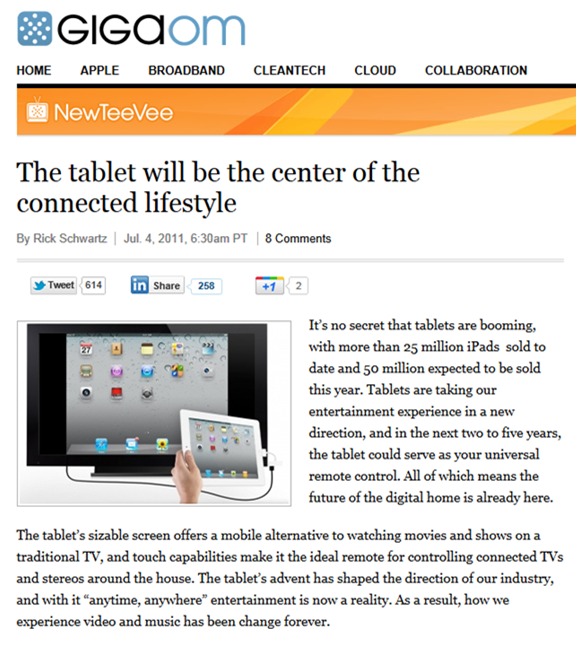
For years I’ve been wanting to start a blog about technology. What finally got me to pull the trigger was an article I wrote for GigaOM last year. Although the article ran on a holiday, it turned out to be very successful, and was Tweeted over six hundred times.

As you can tell from the title, this blog focuses on technology. Although I’m starting with articles about mobile and connected home technologies, this will change over time.

If you like any of my posts, please share them with others. Also, let me know if there are any topics you’d like me to write about. I’ll try to incorporate a few of your suggestions into future posts.

Thanks for stopping by.

– Rick